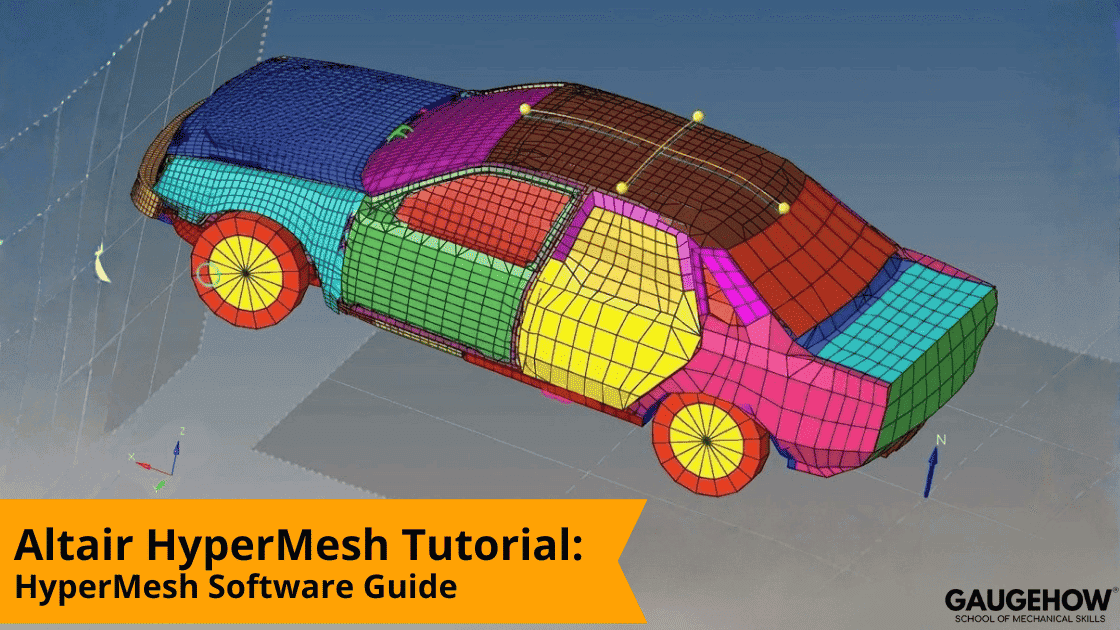
Altair HyperMesh Tutorial: HyperMesh Software Guide

Deepak S Choudhary
This tutorial shows how to go from CAD to a first pass solver deck using a strict, engineer-grade workflow. You get a 12-minute fast start, a HyperMesh-specific units rule with a real 25.4 scaling example, a hard quality gate backed by Altair Help, and a clean handoff checklist.
UI Notes: Steps match the HyperWorks Desktop ribbon workflows as documented in 2022.3 to 2025 Help pages, and the product line continues into HyperWorks 2026. (2022.help.altair.com)
At some point, you will ask what HyperMesh is and why FEA people care. Altair HyperMesh exists because the bottleneck is usually model building, not the solver run. A good preprocessor removes ambiguity around geometry cleanup, meshing, and export, and that is where schedule risk hides in real projects.
This guide is written for FEA readers who need repeatable outcomes: a first pass deck, three sanity checks, and a decision loop for what to fix first. It is designed to work on two common archetypes: a shell part with holes and flanges, and a small assembly with joins. It does not try to teach advanced hex meshing or crash-specific contact tuning, because those deserve dedicated deep dives.
What It Is For In FEA
Think of the tool as the bridge between CAD and solver input. You are not “meshing for beauty.” You are building a model that survives boundary conditions, contacts, and solver assumptions.
Here is the use case ladder that keeps you honest:
Linear Static Structural
Your job is load path and constraint realism. If the first solve gives believable reactions and deformation scale, you can refine locally.
NVH Modal
Your job is stiffness and mass realism. A clean mesh can still give bad modes if parts are disconnected or connections are idealized poorly.
Crash And Impact
Your job is stability and consistency. If densities or scales drift, energy trends and deformation scales become meaningless. Radioss explicitly warns that a lack of unit consistency leads to incorrect or unexpected behavior. (2025.help.altair.com)
Thermal Or Coupled
Your job is interface and gradient realism. Cleanup decisions set whether conduction paths are real or accidental.
Fast Start In 12 Minutes
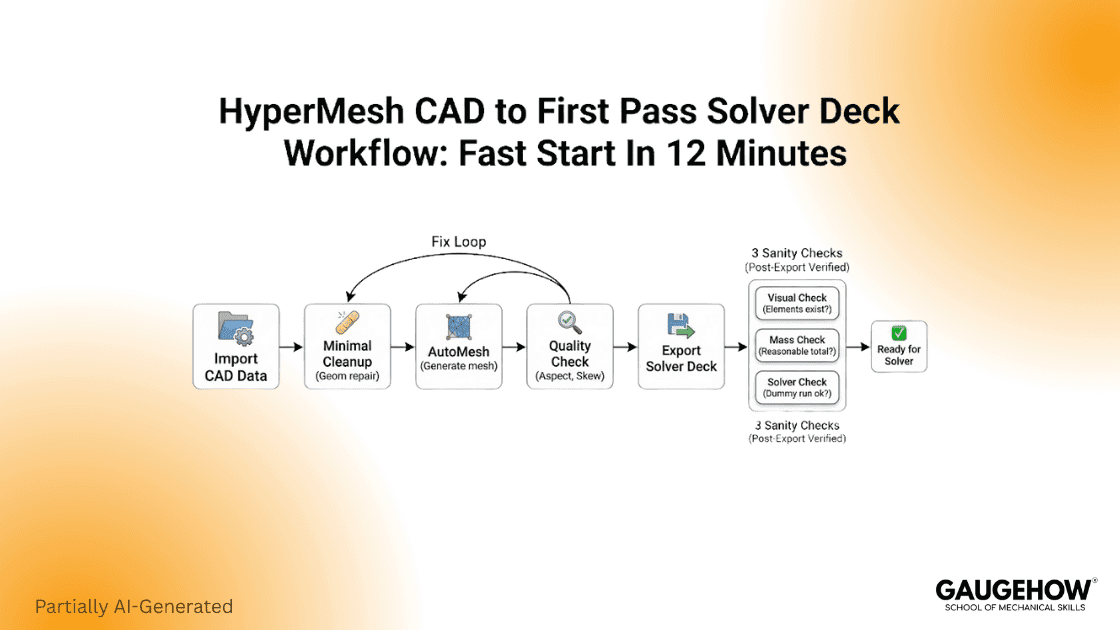
Inputs
CAD file, target element size, intended solver (OptiStruct, Nastran, Abaqus, Radioss)
Output
First pass deck plus three sanity checks: reaction balance, deformation scale, contact status
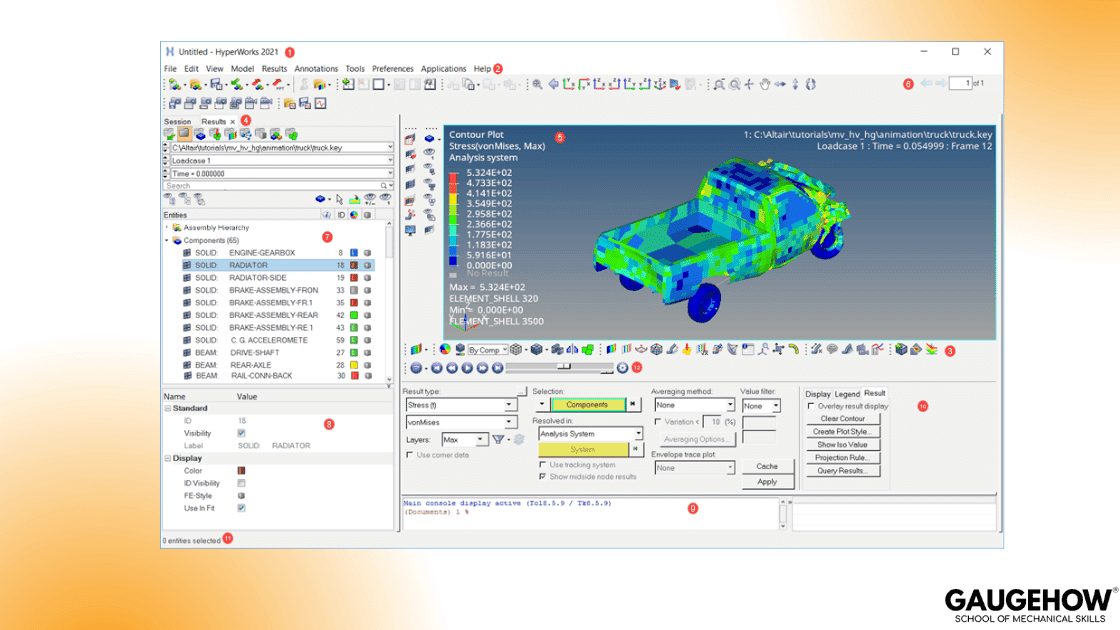
How To Steps
Import Geometry
Use the documented import path and bring the CAD in cleanly. (2022.help.altair.com)Run A Minimal Cleanup Pass
Suppress tiny features below your target element size unless they drive contact or stress.Create A First Surface Mesh
Follow the official AutoMesh scope: mesh all surfaces, vary element size and type where needed, adjust edge density, check quality, change algorithm, and remesh. (2022.help.altair.com)Run Quality Check And Fix One Failure
Fix geometry-driven issues first, then remesh the patch.Export A First Pass Deck
Use the documented export workflow, then run the first solve sanity checks. (2022.help.altair.com)
Units Without Surprises
This section is intentionally HyperMesh specific because generic “units talk” does not prevent real failures.
The HyperMesh Reality
The tool is effectively unitless. Units live in your numbers, not in a global toggle, so scaling and consistency are on you. Community guidance frames the scaling factor as unit conversion for geometry, and reminds you tthat he rest of the unit system is defined by the values you enter for materials, properties, and loads. (Altair Community)
Solvers reinforce the same principle. OptiStruct is described as unit agnostic, but it expects you to provide input data based on a consistent units system. (Altair Help)
That is why unit consistency is not a preference. It is a correctness gate. (2025.help.altair.com)
The Concrete Failure You See In The Wild
This is the classic import shock:
A model that is 10 inches in CAD appears as 250.4 in the preprocessor, and the user corrects it by applying a 1/250.4 scale. (Eng-Tips)
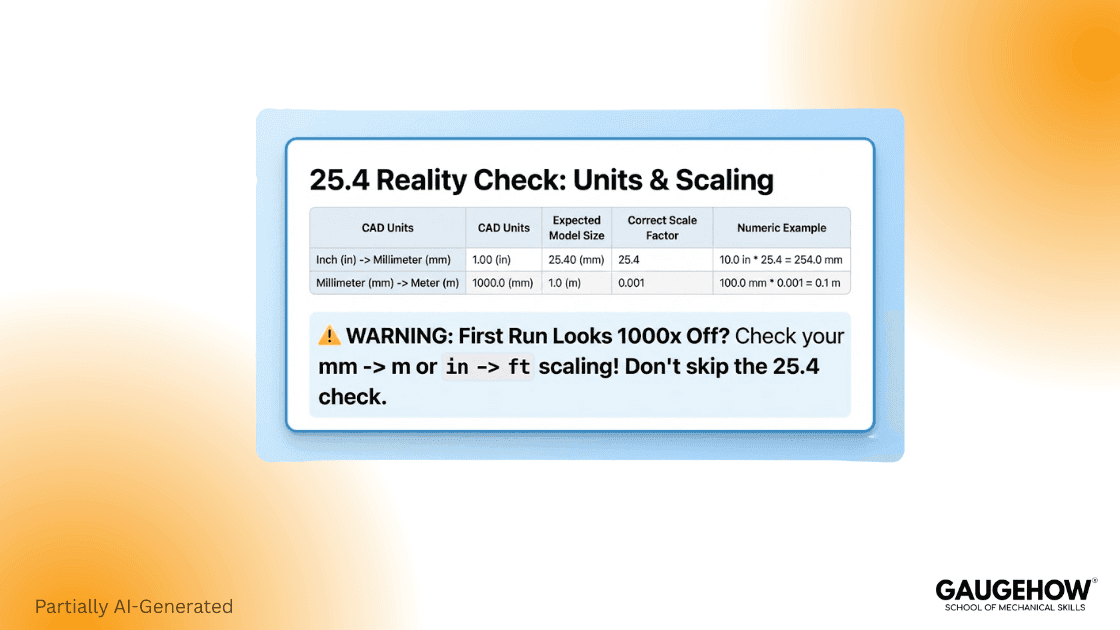
That example is not theoretical. Altair Community users also mention using a 25.4 scale factor to bring an inch model into mm. (Altair Community)
Use the rule below, and you stop bleedingin hours.
The One Rule And The One Check
Pick one base unit set, scale geometry once at import if needed, then keep every material and load consistent with that same system. If your first solve shows a 1000× deflection mismatch, suspect a scale or material unit drift before you touch mesh settings. (Altair Help)
Build The Mesh
This section is where you keep the workflow industrial, not academic.
Shell Vs Solid Decision
Decision Signal | Use Shells When | Use Solids When |
Thickness behavior | Thin, fairly uniform thickness | Through-thickness stress matters |
What you measure | Global stiffness and load paths | Contact pressure and local peaks |
Join realism | Idealized joins are acceptable | Join behavior drives results |
Failure mode | Membrane or bending dominates | Bearing or crushing dominates |
Use this as your shell vs solid decision guardrail. It keeps models honest, and it prevents over-modeling where shells are correct.
Geometry Cleanup Before You Mesh
A clean geometry cleanup workflow is the fastest meshing accelerator you can learn. If you fight sliver surfaces and tiny edges, you are paying for CAD noise with mesh time.
Keep it simple. Remove features smaller than your target element size unless they drive contact, stress, or assembly fit. Then mesh broad regions first and refine only where physics demands.
Surface Meshing Controls That Matter
When transitions look wrong, fix density and size deliberately instead of random remesh retries. Altair documents the edge density and element size edit workflow directly in the ribbon tools. (2024.help.altair.com)
Quality Gate Card
Here is the hard gate you should enforce, grounded in Altair Help.
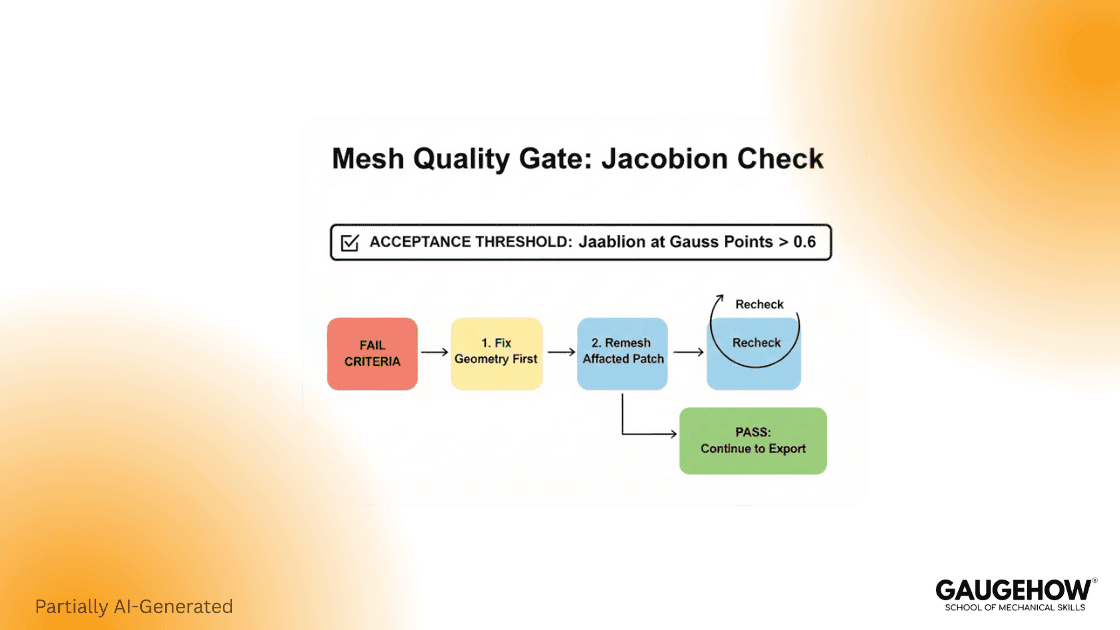
HyperMesh evaluates the determinant of the Jacobian at integration points called Gauss points or at corner nodes, reports the ratio between the smallest and the largest, and notes that when evaluated at Gauss points, values of 0.7 and above are generally acceptable. (2021.help.altair.com)
So your mesh quality criteria become operational:
Fail below the threshold, fix geometry first, remesh, then recheck. You stop chasing cosmetic metrics and start protecting solver stability.
This is also the “bookmark factor” that competitors usually lack: one small card that tells you what to fix first under pressure.
Export And First Solve Checks
Treat this as an engineer handoff, not a file save.
Solver Deck Export Checklist
Export is a defined workflow in the platform, including exporting selected entities and their references. (2022.help.altair.com)
Before solver deck export, make these true:
Geometry scaling is correct, and your 25.4 scale factor story is settled. (Eng-Tips)
You have unit consistency across geometry, materials, and loads. (Altair Help)
Your worst elements pass the Jacobian gate, not just the average. (2021.help.altair.com)
Three Sanity Checks After The First Run
Do these before you refine anything:
Reaction balance matches applied loads directionally and in magnitude.
Deformation scale makes physical sense.
Contact status is active where you expect it.
Unique section competitors miss, but teams use: if you spend more than 30 minutes fixing mesh in one spot, stop. Recheck units and geometry assumptions first, then reapply the quality gate. This saves days across a project.
FAQ
What Is HyperMesh?
It is a finite element preprocessor that takes you from CAD import through model preparation and export for analysis, including very large assemblies. (2022.help.altair.com)
What Is HyperMesh Software?
It is an FEA model-building environment focused on preprocessing speed, solver readiness, and workflow efficiency, and Altair positions it around standardized workflows and versioned help content. (2022.help.altair.com)
How To Change Units In HyperMesh?
You do not toggle a universal unit setting. The common guidance is that scaling is how you convert geometry units, while materials and loads must remain consistent with the chosen unit system. (Altair Community)
How To Mesh In HyperMesh?
Use the AutoMesh workflow: set element size, mesh surfaces, adjust edge density, check element quality, change algorithm if needed, and remesh to clean failures. (2022.help.altair.com)
Is HyperMesh Free?
For enrolled students, Altair provides a free Student Edition route through Altair One, but commercial work typically requires licensing. (Default)
References
HM-3100 AutoMesh tutorial scope (canonical workflow). (2022.help.altair.com)
Element quality and Jacobian acceptance guidance (0.7 at Gauss points). (2021.help.altair.com)
Edge density and size edit steps (ribbon workflow). (2024.help.altair.com)
Community guidance on scaling factor and units. (Altair Community)
Real-world 25.4 scaling failure example (inches vs mm import). (Eng-Tips)
OptiStruct unit agnostic but consistent system requirement. (Altair Help)
Radioss warning on unit consistency, causing incorrect results. (2025.help.altair.com)
Solver deck export workflow documentation. (2022.help.altair.com)
HyperWorks 2026 release continuation (version stamping context). (Default)
Conclusion
Altair HyperMesh becomes valuable when you treat it as an FEA workflow, not a meshing button. Start with the 12-minute baseline, lock scaling and unit consistency early, clean geometry before you chase mesh cosmetics, then enforce the Jacobian quality gate and export with a handoff checklist. That is how you get faster, believable solves.
CAD-CAM-CAE Work Platform
Find or Post CAD, CAM and CAE freelance projects, full-time jobs and Internships.
GaugeHow is the platform built for core engineering work. Whether you need a freelancer for a CAD project, a full-time hire, or an engineering intern,post it here and get matched with the right person.
Our Courses
Complete Course Library
Access to 40+ courses covering various fields like Design, Simulation, Quality, Manufacturing, Robotics, and more.