SOLIDWORKS Keyboard Shortcuts: Commands Engineers Use
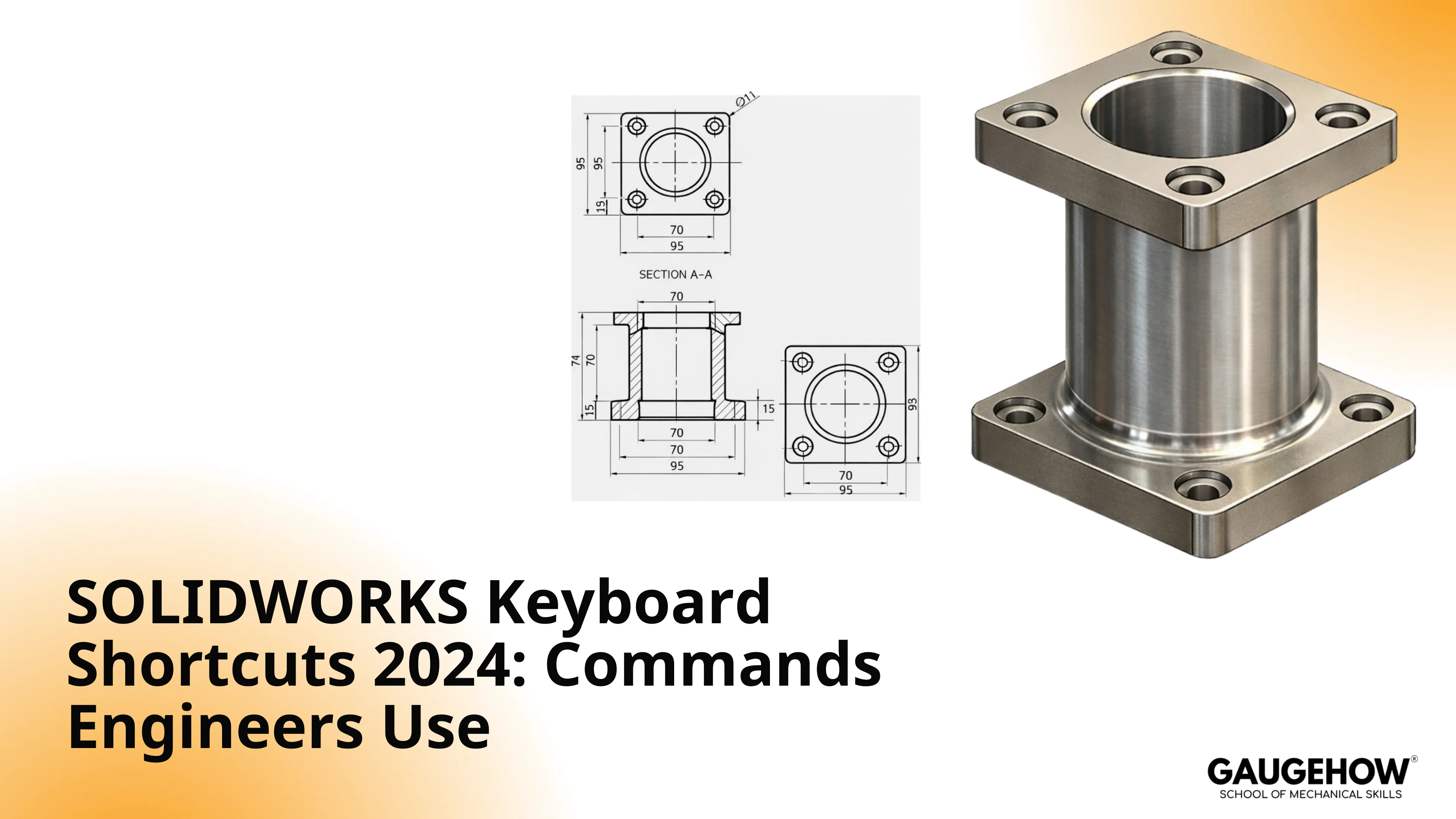
SOLIDWORKS keyboard shortcuts are built-in and custom key commands that speed sketching, view control, selection, rebuilding, assembly work, and drawing edits.
Daily commands include:
S for the shortcut bar
F for Zoom to Fit
Ctrl + Q for Complete Rebuild
Ctrl + Tab for switching files
Spacebar for orientation
Tab or Shift + Tab for hide and show.
You’ll get the baseline set, sketch-specific controls, muscle-memory hotkeys, safe customization, and real-work rules.
Menu hunting adds cursor travel, so sketch loops slow down fast. Rebuild checks get skipped, so stale geometry survives longer. Dense assemblies block picks, so mate edits turn into reselect churn.
Shortcuts cut that waste by keeping commands under your hands. The goal is speed with rebuild confidence, not speed at any cost.
Most defaults stay stable across releases, but custom keys live in your user profile.
Need a printable list? Tools > Customize > Keyboard includes Print List and Copy List.
Top 10 Daily Shortcuts
Shortcut | Purpose | Best Context | Benefit | Failure Risk |
S | Opens shortcut bar near cursor | Repeated command loops | Cuts ribbon for travel | You hunt commands mid-loop |
F | Zoom's model to fit | After zoom/rotate drift | Restores context fast | You edited the wrong area |
Spacebar | View orientation menu | Normal-to checks | Stabilizes viewing decisions | Angled edits hide mistakes |
Ctrl + Q | Complete rebuild | After heavy edits | Restores rebuild trust | Stale geometry slips through |
Ctrl + B | Standard rebuild | Routine propagation | Keeps the model current | Problems appear late |
Ctrl + Tab | Cycle open files | Part–assembly–drawing checks | Speeds verification | Downstream views get missed |
Tab | Hide under cursor | Crowded assemblies | Clears pick blockers | Wrong entity gets selected |
Shift + Tab | Show under cursor | Recover visibility | Restores context quickly | Hidden parts stay hidden |
Ctrl + S | Save | Before risky changes | Locks a checkpoint | You lose rollback points |
Ctrl + Z | Undo | Wrong selection/edit | Fast recovery | You “fix” the tree by digging it |
Full Quick Reference
File And Edit
Shortcut | Command | Notes |
Ctrl + N | New | Start part, assembly, or drawing quickly |
Ctrl + O | Open | Faster than digging through recent tiles |
R | Browse Recent Documents | Useful when you bounce between programs |
Ctrl + W | Close | Keeps file switching clean |
Ctrl + S | Save | Use before rebuild-heavy edits |
Ctrl + P | Common in drawing release loops | |
Ctrl + Z | Undo | Best friend during mate and sketch cleanup |
Ctrl + Y | Redo | Restores a step you actually wanted |
Enter | Repeat Last Command | Speeds repetitive cleanup actions |
Ctrl + A | Select All | Handy with drawings and tables |
Ctrl + X | Cut | Works as expected in most contexts |
Ctrl + C | Copy | Works as expected in most contexts |
Ctrl + V | Paste | Works as expected in most contexts |
Delete | Delete | Removes selected entities/features (context dependent) |
Ctrl + Shift + C | Copy Appearance | Useful when you standardize appearances |
Ctrl + Shift + V | Paste Appearance | Keeps appearances consistent across parts |
View And Navigation
Shortcut | Command | Notes |
F | Zoom To Fit | Fast reset after aggressive zooming |
Z | Zoom Out | Pairs well with Shift + Z |
Shift + Z | Zoom In | Avoids scroll-wheel overshoot |
Spacebar | View Orientation | Quick access to standard views |
Ctrl + 1 | Front | Standard orientation set |
Ctrl + 2 | Back | Standard orientation set |
Ctrl + 3 | Left | Standard orientation set |
Ctrl + 4 | Right | Standard orientation set |
Ctrl + 5 | Top | Standard orientation set |
Ctrl + 6 | Bottom | Standard orientation set |
Ctrl + 7 | Isometric | Fast sanity check on shape |
Ctrl + 8 | Normal To | Critical for sketch and face checks |
Arrow Keys | Rotate View | Coarse rotation without mouse drift |
Shift + Arrow Keys | Rotate 90° Steps | Clean orthogonal stepping |
Alt + Arrow Keys | Rotate About Normal Axis | Useful for “spin” without losing normal |
Ctrl + Arrow Keys | Pan View | Keeps target on-screen during selection |
Ctrl + Shift + Z | Previous View | Snap back after inspection |
Ctrl + Spacebar | View Selector | Fast view tool access at cursor |
Ctrl + R | Redraw | Useful when graphics feel stale |
F11 | Full Screen | Maximizes graphics area during review |
F3 | Quick Snaps | Helps when you need snap visibility quickly |
F9 | FeatureManager Tree Area | Clears screen clutter when needed |
F10 | Toolbars | Quick declutter during selection work |
Ctrl + F1 | Task Pane | Gets panels out of your way fast |
G | Magnified Selection | Saves picks in crowded geometry |
Sketch Tools (Letter Keys And Short Inputs)
Letter keys can be profile-dependent, so confirm yours in Tools > Customize > Keyboard. These are common defaults on many installs.
Shortcut | Command | Notes |
L | Line | The fastest way to start a sketch loop |
A | 3 Point Arc | Useful for controlled arcs without guesswork |
E | Ellipse | Keeps ellipse creation consistent |
O | Offset Entities | Fast wall thickness and parallel geometry |
tr | Trim | Quick cleanup for overbuilt sketches |
b | Make | Commonly used in sketch workflows (verify in your profile) |
Assembly Visibility And Selection
Shortcut | Command | Notes |
Tab | Hide Hovered Component/Body | Clears blockers without tree digging |
Shift + Tab | Show Hovered Component/Body | Restores what you just hid |
Ctrl + Shift + Tab | Show All Hidden | Resets visibility before reviews |
F5 | Toggle Selection Filter Toolbar | Makes filters visible on-screen |
F6 | Toggle Selection Filters | Fast “purple funnel” recovery |
E | Filter Edges | Useful for edge-only picking |
X | Filter Faces | Useful for face-only picking |
V | Filter Vertices | Useful for point-only picking |
C | Expand/Collapse Tree | Cuts scrolling during troubleshooting |
Shift + C | Collapse All Items | Resets the tree when it gets messy |
Home | Tree To Top | Fast return to top-level structure |
End | Tree To Bottom | Fast jump to end of long trees |
Ctrl + T | Flat Tree View | Helps when nested features hide problems |
Ctrl + F | Find/Replace | Useful for locating features by name |
Rebuild And Evaluation
Shortcut | Command | Notes |
Ctrl + B | Rebuild | Routine propagation after edits |
Ctrl + Shift + B | Rebuild All Configurations | Useful when configs drift |
Ctrl + Q | Complete Rebuild | Restores trust after major edits |
Ctrl + Shift + Q | Complete Rebuild All Configurations | Heavy, but reliable for config work |
D | Move Controls To Pointer | Reduces corner travel during acceptance |
W | Commands | Opens command search paths in many setups |
sec | Section View | Fast inspection when internal features matter |
ma | Material | Quick access when mass properties matter |
lo | Loft | Faster than hunting features in menus |
f | Fillet/Round | Speeds edge treatment work |
m | Move/Copy | Useful for bodies and features (context dependent) |
mi | Mirror | Speeds symmetry work |
pat | Linear Pattern | Repetition without reselect fatigue |
pl | Plane | Clean reference creation |
cs | Coordinate System | Helps with export and measurement workflows |
bom | Bill Of Materials | Useful in drawing and documentation flows |
What Is SOLIDWORKS
SOLIDWORKS is a parametric CAD system for parts, assemblies, drawings, and iterative design changes. Sketches drive features, features drive faces, and mates drive motion and fit. That chain makes modeling a loop of sketch, edit, rebuild, verify, and release. Shortcuts matter because they keep those loops tight while you still confirm what changed.
SOLIDWORKS Keyboard Shortcuts
The Baseline 12-Command Set Engineers Actually Use
Shortcut | Purpose | Best Context | Benefit | Failure Risk |
S | Shortcut bar at the cursor | Sketch and feature loops | Faster command access | You bounce ribbons mid-loop |
F | Zoom to fit | Regaining context | Fewer wrong-area edits | You stay zoomed on the wrong zone |
Spacebar | View orientation | Normal-to checks | Cleaner inspections | Angled views hide offsets |
Ctrl + B | Standard rebuild | Routine propagation | Keeps state current | Late errors appear downstream |
Ctrl + Q | Complete rebuild | After major edits | Restores model trust | Stale geometry ships to drawings |
Ctrl + Tab | Switch documents | Verification workflow | Faster cross-checks | You skip a downstream check |
Tab | Hide hovered item | Assembly selection | Clears pick blockers | Wrong entity becomes a mate ref |
Shift + Tab | Show hovered item | Visibility recovery | Restores context fast | Hidden parts remain hidden |
D | Controls for the pointer | Accepting edits | Less corner travel | You delay acceptance and drift in focus |
Enter | Repeat the last command | Cleanup and repetition | Cuts relaunch clicks | You relaunch tools manually |
Ctrl + S | Save | Before risk | Locks checkpoints | Rollback becomes painful |
Ctrl + Z | Undo | Mistake recovery | Fast reset | Tree hunting replaces undo |
Muscle memory builds faster when the baseline stays stable. Stability matters because you model under deadline pressure, not under perfect conditions.
Sketch Shortcuts
Sketch speed stays safe when relations and inference stay controlled. Sketch shortcuts work best when they prevent cleanup, rather than speeding cleanup.
Move | Intent | Key/Modifier | Outcome | Break Mode |
Block auto-relations during placement | Prevent unintended constraints | Ctrl (hold while sketching) | Cleaner intent early | Over-defined sketches appear later |
Stop inference while dragging endpoints | Prevent accidental snaps | Ctrl + drag (endpoint edit) | Fewer “almost” constraints | Geometry drifts off-axis |
Force snapping when you want it | Lock clean alignment | Shift + click | Predictable placement | Misalignment creates downstream edits |
Snap line lengths quickly | Reduce “close enough” lines | Shift + drag (while sketching) | Consistent proportions | Detail dims expose sloppy lengths |
Switch 3D sketch plane direction | Prevent wrong-axis segments | Tab (in 3D sketch) | Correct plane control | 3D paths need to be rebuilt |
Move entities without breaking intent | Reposition while preserving logic | Shift + drag (selected entities) | Controlled layout edits | Relations get stressed or broken |
Copy sketch geometry quickly | Repeat shapes without redraw | Ctrl + drag (selected entities) | Faster repeats | Copies mismatch and confuse intent |
SOLIDWORKS Hotkeys
A compact hotkey layer keeps checks quick and decisions clean. SOLIDWORKS hotkeys earn their spot when they reduce mouse travel and increase model confidence. View control stays sharp, rebuild trust stays visible, and file switching stops interrupting verification loops.
Customize Keyboard Shortcuts
Engineers customize keyboard shortcuts to remove friction from repeat loops, not to build a personal interface that collapses during handoff. Tools > Customize > Keyboard lets you search for a command, assign a key, then export a list using Print List or Copy List.
Custom keys follow your user profile, so another workstation can feel slow. Import settings only after you prove the shortcut helps a real loop. A shortcut that saves seconds but adds confusion costs hours later.
Defaults Vs. Your Setup
Default Keys You Should Keep Universal
Keep rebuild, view control, file switching, and visibility keys consistent. Ctrl + Q, Ctrl + B, Spacebar, Ctrl + 1–8, F, Ctrl + Tab, Tab, and Shift + Tab reduce friction across every workstation.
Keys Safe To Customize
Assign keys to repeat loops that are clearly yours, like a frequently used feature, inspection tool, or sketch command. Keep custom keys clustered around one workflow, then document the top five you truly rely on.
Keys That Create Handoff Confusion
Avoid overriding core rebuild and navigation keys. Avoid remapping Tab behavior for visibility and selection. Avoid heavy use of single-letter commands that vary by profile, because colleagues will not share your muscle memory.
Shortcut Bars And Mouse Gestures
Shortcut bars and gestures reduce cursor travel when your right hand already lives in the graphics area. S pulls tools to the pointer, so loops speed up without ribbon hunting. Gestures help view moves and selection helpers, so the mouse stays focused on geometry.
Where These Commands Save Time
Shortcuts pay off when they shorten loops you repeat under load. Use this map to decide what to learn, what to standardize, and what to keep personal.
Work Stage | Friction Point | Shortcut Move | Outcome | Failure Mode |
Sketch creation | Relations and snaps fight intent | Ctrl and Shift controls | Cleaner sketches | Fragile sketches break features |
Feature edits | Too much UI travel | S and Enter loops | Faster revisions | Inconsistent edits across features |
Rebuild verification | Geometry trust drops after edits | Ctrl + B and Ctrl + Q | Reliable state | Errors reach drawings and mates |
Dense assemblies | Picks get blocked | Tab and Shift + Tab | Cleaner selection | Wrong references drive bad mates |
Downstream checking | Switching files feels slow | Ctrl + Tab | Faster verification | Views drift and get missed |
Drawing cleanup | Views look right, but aren’t | Rebuild, orient, verify | Safer release | PDFs ship with stale views |
Real-Work Micro-Playbooks
Selection Filters
Clicks keep missing faces and edges, so a filter is still active.
Hit F6 to clear filters, then retry the same pick.
Show the filter toolbar with F5, so you can see what’s lit.
Before mating, confirm filters are off, then select mate targets.
Rebuild Distrust
Geometry looks updated, but drawings or mates behave incorrectly afterward.
Run Ctrl + Q to force a full rebuild, then recheck the feature tree.
Warnings in the tree mean the model state is not trustworthy yet.
Fix upstream errors first, then rebuild again before touching drawings.
Mate Instability
A mate flips or fails after a small edit, so references are shifted.
Hide blockers with Tab, then reselect clean faces and edges.
Avoid selecting temporary edges, because they change after edits.
Rebuild, then drag-test the mechanism before you lock mates in.
Drawings Lagging
The model changed, but the drawing view still looks like the old state.
Rebuild the model, then reopen the drawing and refresh views.
Check the view orientation and references, because stale views look fine.
Export only after critical views match the current geometry.
Rebuild Confidence Gate
Gate Step | Trigger | Action | Outcome | Release Risk |
Full rebuild | Heavy edits or rebuild distrust | Run Ctrl + Q | Restores trust | Stale geometry reaches release |
Tree scan | Warnings, suppressions, rebuild icons | Fix upstream first | Predictable rebuild | Downstream debugging explodes |
Mate check | Geometry changes near mate refs | Reselect clean refs | Stable motion and fit | Mechanism fails in review |
Drawing validation | Model revision before export | Reopen and verify views | Accurate deliverables | PDFs carry the old state |
Checkpoint save | After each verified stage | Ctrl + S | Safe rollback points | Recovery becomes guesswork |
Conclusion
Start with the daily ten keys, then pull from the full reference when you need an answer fast. Keep baseline keys universal across workstations, customize only proven repeat loops, and protect and rebuild trust. Speed matters, but release quality wins the schedule.
FAQs
How Do I Change A Shortcut In SOLIDWORKS 2024?
Open any file, go to Tools > Customize, then choose the Keyboard tab. Search the command, click the shortcut box, press your key combo, and resolve conflicts before you build muscle memory.
How Do I Print A List Of My Shortcuts?
Go to Tools > Customize > Keyboard, then filter to the commands you care about. Use Print List for a paper copy or Copy List for a clipboard export you can paste into a team cheat sheet.
What Does The S Key Do, And Why Do Engineers Use It?
S opens a context shortcut bar right at your cursor, so command access stays inside the graphics area. It reduces ribbon travel and keeps sketch, feature, and mate loops moving without breaking focus.
Why Should I Use Ctrl + Q Instead Of Only Ctrl + B?
Ctrl + B rebuilds normally, while Ctrl + Q forces a deeper rebuild pass. After heavy edits, geometry can look updated but behave incorrectly, so Ctrl + Q is the faster way to restore trust.
Why Won’t SOLIDWORKS Let Me Select Faces Or Edges In An Assembly?
Selection filters are likely still active, so clicks ignore the entity type you want. Press F6 to clear filters, then retry. Press F5 to show the filter toolbar so you can confirm what’s lit.
CAD-CAM-CAE Work Platform
Find or Post CAD, CAM and CAE freelance projects, full-time jobs and Internships.
GaugeHow is the platform built for core engineering work. Whether you need a freelancer for a CAD project, a full-time hire, or an engineering intern,post it here and get matched with the right person.