CAD vs AutoCAD: The 1 Difference That Changes Everything
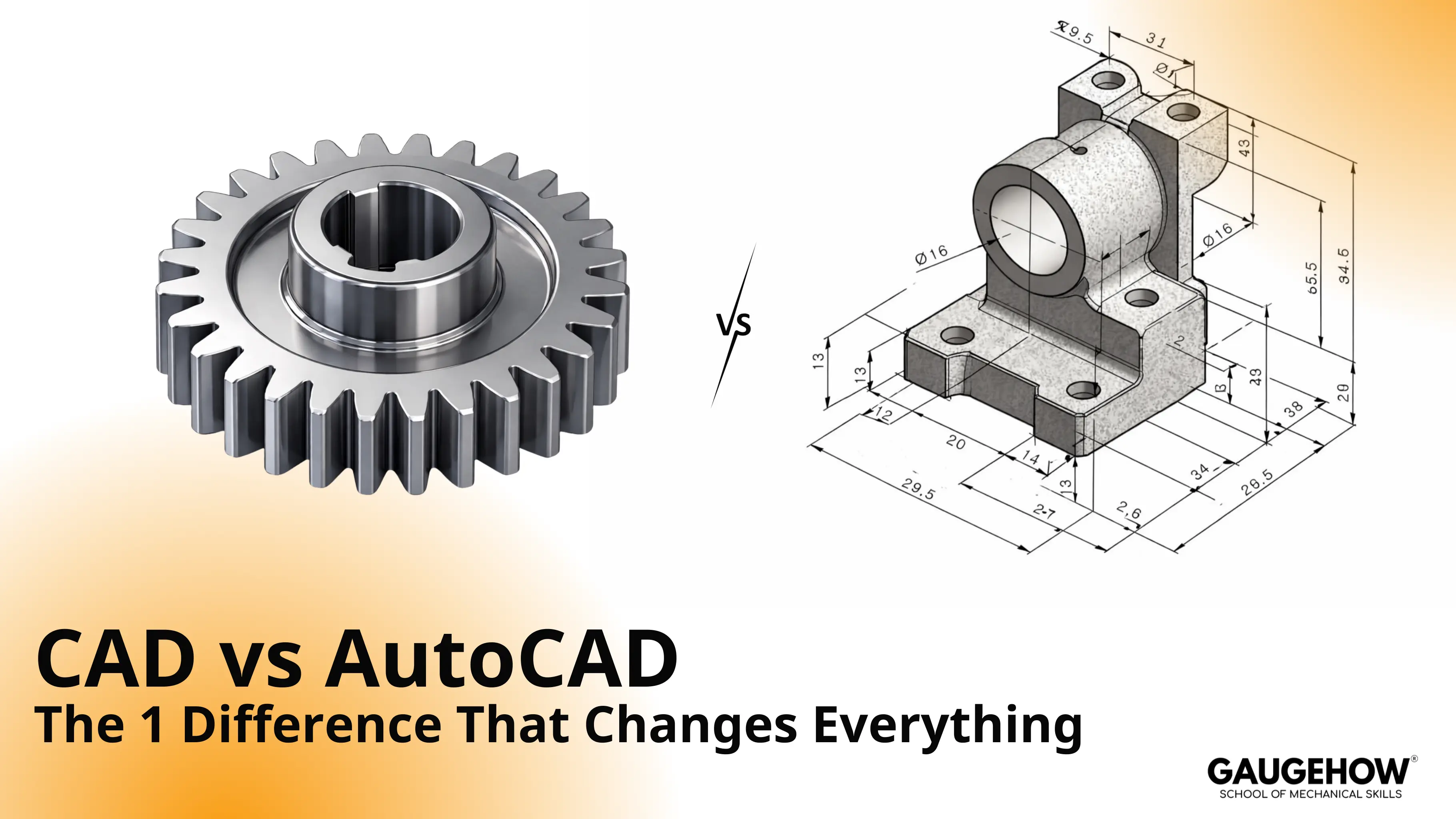
The real split in CAD vs AutoCAD is category v.s product. CAD names the whole way teams create and control design files. AutoCAD is one specific tool that produces some of those files, mostly DWG-based drafting. Mixing them leads to wrong outputs, weak revision control, and avoidable rework.
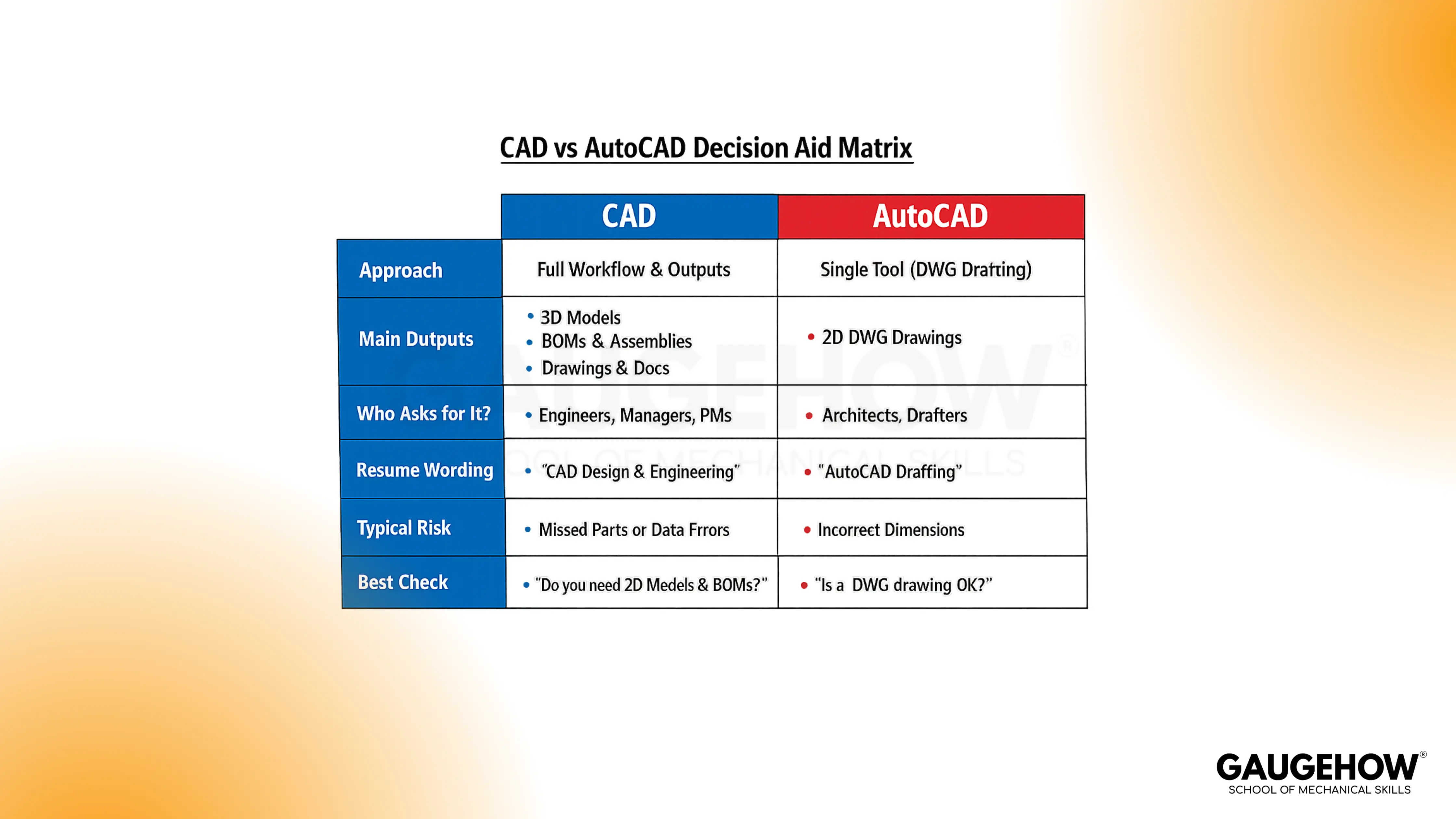
Most people hit the same wall in week one. A senior says, “Send the CAD,” and the room goes quiet. One person thinks DWG, another thinks a 3D model, and someone else sends a PDF. Confusion stays hidden until a mating face shifts, a datum scheme changes, or a tolerance stack gets read two ways.
Clarity comes from one habit: treat the output as the truth, not the tool name. That habit tells you what to learn, what to ship, and how to stop drift between files. Working engineers need it because handoffs are where time gets burned. Students need it because job posts often use “CAD” as a loose label.
Fast wins matter, but depth protects you later. The goal here is simple: know what CAD means in a team, know where AutoCAD fits, and ship the right artifact with the right checks.
Problem-Solving Setup
Confusion starts because teams speak in shortcuts. People say “CAD” when they mean “the file the shop can use.” AutoCAD becomes the name used in the drafting lane, so the product name replaces the category. Wrong assumptions then slip into handoffs, and drift spreads across emails and exports.
Real failure modes look boring at first. A PDF gets shared without a revision stamp update. A DWG view updates, but plotting changes lineweights. A vendor imports a model, and the face IDs shift, so a setup sheet points to the wrong surface. Drift then hits inspection, and the argument becomes “which file is right?”
Job posts add fuel to it. “CAD required” usually means “ship our standard outputs without drama.” Some roles expect clean DWG and plotted PDFs, while others expect a model plus exports like STEP. Reading the deliverable clues beats guessing the brand.
CAD vs AutoCAD: Meaning in Simple Terms
CAD vs AutoCAD
CAD vs AutoCAD meaning becomes clear when you name the output. CAD is the whole practice of making design files and controlling them through change. AutoCAD is one program that can produce CAD outputs, often focused on drafting. Mixing the words hides what file you really need. Over 200 million people use Autodesk software worldwide.
Output comes first: drawing, model, or export. Risk shows up when someone assumes “CAD” equals DWG. Check the request with one line before you start work: “Do you need editable DWG, locked PDF, or a model?”
CAD Is A Family Of Workflows
CAD can mean drafting only, or it can mean model-first design. A drafting workflow outputs a controlled drawing sheet set. A model first workflow outputs a part, an assembly, and derived drawing views. A broader CAD setup also covers standards, naming, and revision stamp discipline.
Risk grows when a team uses one word for all. A tolerance stack can live in a 3D model, while a drawing note controls inspection. Check the workflow by asking what drives the decision: geometry, dimensions, or release package.
The Output Test
Name the output first, then pick the tool that produces it reliably, because CAD vs AutoCAD changes the answer when a team needs a controlled package.
The One Difference: CAD vs AutoCAD
Category Versus Product Changes: The Ask
Category language tells you the whole space. CAD covers how teams create drawings, models, and controlled releases. AutoCAD is one tool that can create CAD outputs, often focused on DWG drafting. Mixing the terms hides the real request.
Output should be named before any file is made. Risk shows up when “send the CAD” becomes a random file type. Check clarity with one line: “Do you need editable DWG, locked PDF, or a 3D export?”
Deliverables Beat Feature Talk
Deliverables are what the team measures. A controlled drawing set needs layers, blocks, and plot styles. A model-driven workflow needs stable references, because mating faces and datums must survive changes. Tool features matter, but the shipped artifact matters more.
Risk appears when a tool is chosen by habit. A drawing-only tool gets forced into model problems, or a model tool gets used for strict drafting without standards. Check the first two outputs the team needs, then pick the tool that fits.
Hiring Language Becomes Simple
Hiring teams rarely want “a tool list.” Managers want proof that you can ship what their process needs. Drafting roles care about DWG discipline and plotting. Design roles care about intent that survives change, plus exports that open cleanly.
Risk shows up in tests and interviews. A resume says “CAD,” but the task is a DWG sheet set. Check your wording by naming outputs first, then naming the tool second.
Where AutoCAD vs CAD fits in Mechanical Work
AutoCAD vs CAD
AutoCAD vs CAD is a choice by deliverable, not by popularity. AutoCAD fits when the team’s main output is DWG drawings, with strong layer and plot discipline. “CAD” in a mechanical design team often points to 3D parametric work, along with drawings and exports. The right pick depends on what must ship.
Risk starts when a tool is chosen by habit. A model-driven process needs stable references and fast change updates. Check the output chain: drawing, export, and revision stamp all must agree.
AutoCAD Wins When Drawings Are The Product
Drawing-heavy work lives on clear sheets. AutoCAD fits when the team’s output is DWG layouts, callouts, and a plotted PDF that matches standards. That output supports quotes, build notes, and client approvals. Drafting discipline becomes the real value.
Risk shows up when plotting, and standards are loose. Two people print the same sheet and see different lineweights. Check the file by plotting to PDF and opening it like the receiver.
AutoCAD Struggles When Change Must Flow Through A Model
Model-driven teams need updates to ripple cleanly. Changingthe thickness can move a mating face and shift a datum scheme. Downstream work may also need a stable model for CAM toolpath regen, stock allowance checks, or cutter engagement review. AutoCAD can feel heavy here because the workflow is not built around model intent.
Risk shows up as late remake work. A CAM programmer rebuilds toolpaths after geometry shifts. Check the process by choosing a model-first tool when geometry drives downstream work.
Quick “Lane Test” Before You Commit
Lane testing saves time early. Ask what time the shop and vendor will open. Ask what quality will be inspected against. Ask what the manager signs off.
Risk grows when the lane is guessed. A drawing-only lane gets a model, and nobody trusts it. Check alignment by confirming the deliverable chain before work starts.
Micro-Example: Change, Drift, Consequence, Gate
A thickness change lands late in review. The model updates, and a mating face shifts because the reference was weak. One drawing view updates, but an old PDF stays in the email thread. A vendor then programs from the wrong sheet, and a hole location drifts from the datum scheme.
Consequences show up fast on the floor. Fixture pins pick a different face, so the part sits offset. Inspection reads a tolerance stack from the wrong revision. The shop loses time, and trust drops.
A simple gate stops the spiral. Regenerate drawing views, then re-plot the PDF. Re-export the promised file, then open it in a clean viewer. Confirm the revision stamp across the model, drawing, and export before sending.
Your First Job Deliverables
Drafting Track: Clean DWG That Plots Right
Week 2 output is usually a DWG sheet set and a plotted PDF. Clean layers, stable blocks, and correct scale matter more than fancy geometry. Plotting must match the team standard, because the print is the product. A setup sheet often gets built from that print.
Risk hits during handoff. Lineweights change, text shifts, or Xrefs break, so the shop reads the wrong thing. One pointer block keeps the load low.
Use these before sending a DWG:
Lock templates, layers, and plot styles early.
Verify blocks and notes match the standard set.
Plot to PDF and check scale and lineweight.
That check makes the output repeatable across systems.
Design Track: Model Intent That Survives Change
Week 2 output is a model plus a drawing that updates. A stable datum scheme and clean constraints keep intent alive. Mating faces must be chosen with care, because change will come. Exports like STEP may also be required for vendors.
Risk shows up after revisions. A face reference changes, and derived views drift. Verify before sending by rebuilding, regenerating views, and checking critical interfaces. Confirm the revision stamp on every deliverable file.
Deliverable Filter: Pick Output, Then Tool
Week 2 output tells you what to learn first. A drafting-first role needs DWG standards and plotting control. A design-first role needs model intent, release discipline, and clean exports. Mixed roles need both, but output order still matters.
Risk shows up when learning follows brand names. A tool gets learned, but deliverables still fail. Verify the first two deliverables the team expects, then choose the tool that ships them cleanly.
FAQs
Is AutoCAD the same as CAD?
CAD is the whole category. AutoCAD is one product inside it. Output decides which matters in your work.
What does “CAD required” usually mean at work?
Most teams mean “ship our standard outputs.” Look for DWG, drawings, plotting, or 3D export clues.
Can AutoCAD be used for mechanical design?
AutoCAD works well for drawings and layouts. Model-heavy design usually needs a tool built around intent and change flow.
What should I write on my resume?
Lead with deliverables, then name the tool. Example: “DWG drafting and plotting,” or “3D model, drawings, and STEP export.”
Which should I learn first?
Choose based on week 2 outputs. Drafting roles favor DWG and plotting discipline. Design roles favor model intent and clean exports.
Conclusion
Clarity comes from one split: category versus product. Choose by output, not by habit, and you stop the “send the CAD” confusion before it reaches the shop. Name the file you will ship, then run one gate every time: regenerate views, replot the PDF, re-export the promised file, open it in a clean viewer, and confirm the revision stamp across all deliverables. If you want this workflow drilled properly, learn it in GaugeHow’s CAD Design And Drafting course.
CAD-CAM-CAE Work Platform
Find or Post CAD, CAM and CAE freelance projects, full-time jobs and Internships.
GaugeHow is the platform built for core engineering work. Whether you need a freelancer for a CAD project, a full-time hire, or an engineering intern,post it here and get matched with the right person.