Top Free CAD Tools for Beginners (Pros & Cons) 2026
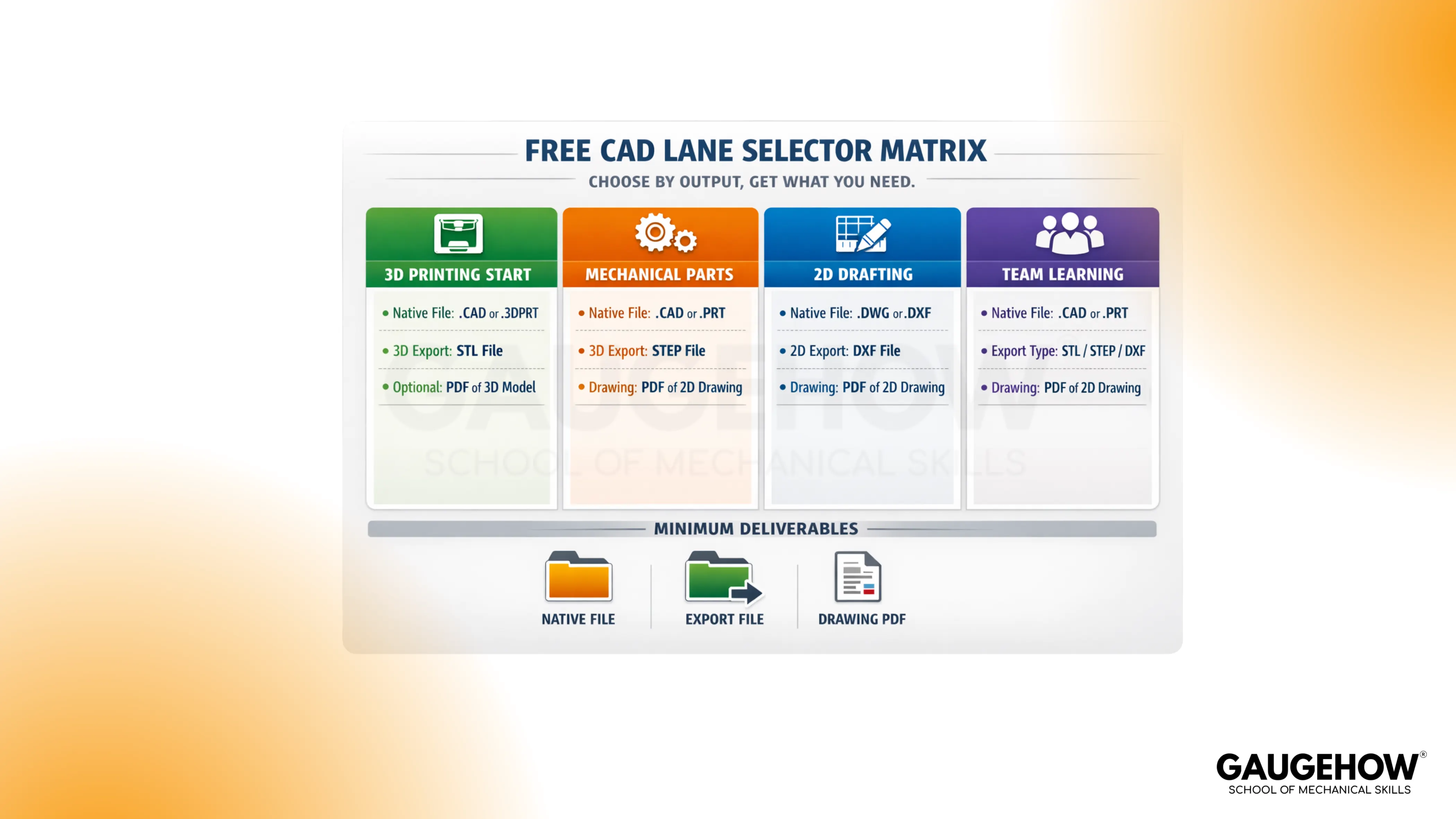
Practical selection starts with one outcome, not ten feature lists. Free CAD software works best when a small model can be edited, rebuilt, and exported without surprises. Choose a lane, verify license limits, test one export, then commit for two weeks. Clean deliverables keep learning calm: native file, STEP export, plus drawing PDF when drawings matter.
Calm progress comes from tools that support revision, not just creation. CAD learning usually breaks at three moments: license limits appear late, exports fail when another tool opens them, or edits explode because constraints were never disciplined.
Stable choices reduce those failures early.
Clear expectations help more than motivation. Student work benefits from clean drawings and readable dimensions.
Job-seeking work benefits from proof files that open on another machine. Maker work benefits from quick STL output and simple edits that do not distort scale. Drafting-heavy work benefits from layer discipline and predictable DXF exchange.
Decisive lane: pick 3D print, mechanical, 2D drafting, or team learning
Confirmed limits: read the license and privacy rules once
Verified export: export STEP or DXF once, reopen, and confirm scale
Tested revision: change one key dimension, rebuild, export again
Committed sprint: stay on one tool for two weeks, then reassess
Best free CAD software: Quick picks
Reliable choice feels simple when “free” is treated as a set of constraints, not a badge. Best free CAD software usually means “strong beginner workflow inside real limits,” so selection should focus on lane fit, export needs, and privacy expectations.
Focused picks land quickly:
Fusion personal use suits beginner mechanical workflows.
FreeCAD suits open-source control.
Onshape Free suits collaboration practice when public storage fits.
Tinkercad suits fast 3D-print learning
LibreCAD or QCAD suits drafting-first work.
Clean results come from running one export check before investing weeks.
What “free” actually means.
Practical “free” comes in three forms. Open-source tools stay free without paywalls, while setup and workflow discipline matter more. Free tiers often trade privacy or advanced features for no-cost access. Eligibility-based plans can be generous, yet usage boundaries should be understood before serious projects begin.
Consistent learning stays easier when surprises are removed early. License limits, public storage rules, and export capability are the three checks that prevent wasted time. Simple reading saves hours of switching later.
How these picks were chosen
Comparable lists exist across CAD blogs and software directories, and many follow a similar pattern: long tool lists with short blurbs. Helpful improvements came from reading official licensing and pricing pages, scanning beginner forum pain points, and comparing workflows against practical deliverables. Consistency mattered most: each pick had to support one beginner lane, one meaningful export path, plus a clear limitation that influences real work.
Measured judgment also came from shipped work expectations. Released drawings, revised parts, and handoff files behave differently from “first-time models.” That reality shaped every limitation and every “done” definition below.
How to choose without regret
Structured selection follows one gate: deliverable first, then access, then sharing, then handoff. Confident choice comes from checking one small project end-to-end, not from reading ten comparisons. Solid results appear when editing and exporting behave well on day one.
Deliverable
Concrete output narrows tool choice immediately. 3D printing wants STL plus clean dimensions and wall thickness control. Mechanical parts often need STEP for handoff and drawing PDFs for communication. Drafting-heavy work needs DXF/DWG exchange and readable PDFs more than 3D features.
Access
Stable access means work runs where practice happens. Browser tools remove install friction and support lower-spec machines, while desktop tools support offline work and heavier projects. Consistent units and templates matter here, since unit mistakes usually appear late during exports.
Sharing
Collaborative learning benefits from clean sharing and version history. Public storage can be perfectly acceptable for class projects, open learning, and non-sensitive work. Private work needs private storage and controlled permissions before any real design effort begins.
Handoff
Practical handoff means another tool opens exported files without scale issues or missing geometry. STEP supports many downstream workflows, while STL suits printing but limits parametric edits later. Verification should be routine: export once, reopen, confirm, then continue.
Top 10 beginner-friendly tools
1. Tinkercad
Friendly simplicity makes early 3D printing progress feel immediate. Smooth modeling comes from shape-based building with clear dimensions and quick STL export.
Meaningful limitation shows up with parametric edits and assemblies, since advanced constraint control is not the focus. Deliverables look like: native project file, STL export, plus a labeled screenshot set for reference.
2. Autodesk Fusion (Personal Use)
Versatile workflows suit mechanical parts, basic assemblies, and drawing outputs in one place.
Practical beginner value comes from predictable sketches, parametric edits, and an export path that supports handoff. An important limitation comes from non-commercial usage boundaries that must match the project's intent. Deliverables look like: native file, STEP export, drawing PDF.
3. FreeCAD
Independent control suits learners who want open-source ownership and offline work. Strong parametric capability supports careful edits when sketch constraints are disciplined.
Noticeable limitations appear in the workflow learning curve and occasional rough edges compared with polished commercial tools. Deliverables look like: native file, STEP export, drawing PDF.
4. Onshape Free (public projects)
Modern browser CAD fits shared learning, classes, and collaborative practice. Strong version history and sharing reduce file chaos during group feedback.
Real limitation comes from public document storage on the free plan, which does not suit private designs. Deliverables look like: cloud-native document, STEP export, drawing PDF.
5. Solid Edge Community Edition
Serious depth suits learners who want an industry-like environment while staying in personal-use territory. Capable modeling supports robust parametric edits and more advanced workflows than beginner tools.
Practical limitations come from usage boundaries and potential restrictions tied to community licensing. Deliverables look like: native file, STEP export, drawing PDF.
6. SolveSpace
Lightweight parametric modeling keeps fundamentals visible without interface clutter. Clean learning comes from sketches, constraints, and simple part workflows that rebuild predictably.
Natural limitations appear in smaller ecosystems and fewer guided learning materials than in mainstream platforms. Deliverables look like: native file, STEP export, drawing PDF.
7. SketchUp Free (web)
Visual modeling suits conceptual layouts, woodworking planning, and quick spatial geometry. Simple access through a browser reduces setup effort and supports short practice sessions.
Practical limitations show up when dimension-driven parametric edits and engineering drawings become important. Done deliverables look like: web-native model, STL export for prints when supported, plus a labeled screenshot set.
8. OpenSCAD
Precise scripting suits repeatable parts and parameter-driven variations. Stable output comes from changing numbers instead of redrawing geometry, which can feel powerful for patterns and enclosures.
Meaningful limitation comes from a code-first workflow, which may slow early learning for visual thinkers. Deliverables look like: source script, STL export, plus a neutral STEP path only when the workflow supports it.
9. LibreCAD
Clean drafting suits 2D layouts, laser profiles, and shop documentation. Useful learning comes from layers, line discipline, and readable dimensioning without heavy system demands. Hard limitation stays simple: 3D modeling is not part of the tool. Deliverables look like: native drawing file, DXF export, drawing PDF.
10. QCAD Community Edition
Approachable drafting suits learners who want steady 2D output and predictable DXF workflows. Practical strength appears in clean drawing tools and straightforward documentation habits.
Meaningful limitation comes from community-edition boundaries compared with paid versions, so expectations should stay aligned. Deliverables look like: native drawing file, DXF export, drawing PDF.
Free CAD programs for 2D drafting
Drafting-first work stays valuable in fabrication, layouts, and documentation-heavy environments. Free CAD programs shine when DXF export behaves predictably, and PDFs remain readable across devices. Consistent layers, clear dimension styles, and template discipline matter more here than fancy 3D features.
Focused practice in 2D also builds transferable habits. Clear linework, sensible dimension placement, and tidy sheet output translate into better communication on real projects. Drafting tools earn trust when another person can build directly from that sheet.
Conclusion
Free CAD only helps when it survives edits and handoff. Pick one lane, read the license and privacy limits once, then run a proof gate: export STEP or DXF, reopen it, confirm scale, change one driving dimension, rebuild, export again. Commit to one tool for two weeks and ship clean deliverables. If you want guided projects and checks, learn the workflow inside GaugeHow’s CAD Fundamentals for Mechanical Engineers course.
FAQs
Which tool is the easiest free CAD tool to learn?
Friendly starts usually come from Tinkercad because early prints happen quickly, and controls feel simple. Practical growth often moves toward Fusion or FreeCAD once edits, dimensions, and drawing output begin to matter.
Clear choice depends on lane and comfort with parametric thinking. For many beginners, the easiest free CAD tool to learn remains the tool that supports a full export check on day one. Also, to get industry-level learning experience joind our CAD course online.
Which option works best as free CAD for 3D printing?
Practical printing needs STL output, predictable scale, and simple control of wall thickness and fit. Tinkercad fits first prints, while Fusion and FreeCAD fit repeatable parts that need clean edits later.
Reliable success comes from one test print, then one revision loop, not from a perfect first design. For many workflows, free CAD for 3D printing becomes “best” when edits rebuild cleanly, and exports open correctly.
Should 2D or 3D be learned first?
Structured learning follows project needs. Drafting-heavy tasks fit 2D first, while parts and printing fit 3D first. Focus improves faster when one lane is chosen for a month, then the second lane is added once fundamentals feel stable.
What makes “done” on a beginner project?
Practical completion means edit stability and handoff reliability. One key dimension should change without breaking the model or drawing. Exported files should reopen with the correct scale and clean geometry. That behaviour matters more than feature count.
CAD-CAM-CAE Work Platform
Find or Post CAD, CAM and CAE freelance projects, full-time jobs and Internships.
GaugeHow is the platform built for core engineering work. Whether you need a freelancer for a CAD project, a full-time hire, or an engineering intern,post it here and get matched with the right person.