FANUC Roboguide
FANUC Roboguide

RoboGuide: A Student's Guide to FANUC's Robot Simulation Software
If you are learning industrial robotics, you will run into the name RoboGuide very quickly. It is one of the most widely used tools for programming and testing FANUC robots, and it shows up in classrooms, training labs, and real factories all over the world.
This guide explains what it is, what it can do, what it costs, and how it compares to the alternatives — in plain language, without the marketing spin.
What is RoboGuide?
RoboGuide is robot simulation and offline programming software developed by FANUC. It allows engineers to create, program, and test robot work cells on a computer before deploying them to real robots.
Think of it as a virtual robot lab. Users can build a 3D simulation of a robot cell, test robot movements, check reachability, and estimate cycle times without stopping production or risking equipment damage.
One of RoboGuide's biggest advantages is that it uses FANUC's Virtual Robot Controller, which closely matches the behavior of a real FANUC robot. This makes simulations more accurate and helps reduce errors during deployment.
RoboGuide works only with FANUC robots and is not designed for multi-brand robot programming.
The latest version, RoboGuide V10, includes a 64-bit architecture, improved CAD import tools, a modern user interface, and virtual reality (VR) support for viewing simulations in an immersive environment.
Key features
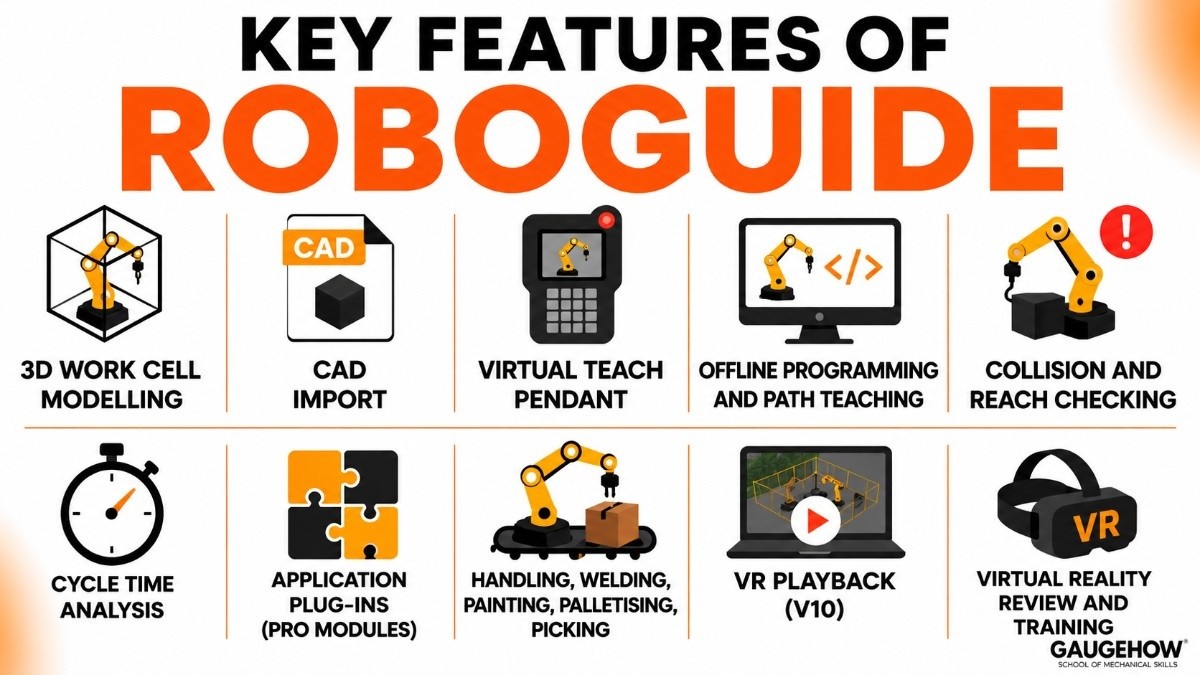
Here are the capabilities that actually matter when you use RoboGuide day to day:
3D work cell modelling. Build a virtual cell with your robot, tooling, fixtures, conveyors, and parts so the layout matches your real floor space.
CAD import. Bring in your own CAD models of grippers, machines, and parts. V10 supports many more native CAD formats than older versions, so you spend less time converting files.
Virtual teach pendant. Program the robot using an on-screen pendant that looks and behaves like the real FANUC teach pendant, which makes the skills you learn transfer directly to the shop floor.
Offline programming and path teaching. Create and edit robot motion programs without touching the physical robot, so production keeps running while you work.
Collision and reach checking. See whether the robot can physically reach every point and whether the arm or tool will hit anything before you commit to a design.
Cycle time analysis. Get accurate estimates of how long a task takes, which is essential for quoting jobs and planning throughput.
Application plug-ins (the "PRO" modules). Add-ons for specific jobs such as handling, welding, painting, palletising, and high-speed picking.
VR playback (V10). Record a simulation and view it inside a VR headset to check sightlines and spatial awareness — useful for design reviews and training.
RoboGuide HandlingPRO and the other PRO modules
RoboGuide is really a core program with a family of optional plug-ins, and RoboGuide HandlingPRO is the one most students meet first.
HandlingPRO is the module for general material handling — things like machine loading and unloading, packaging, assembly, and pick-and-place.
It gives you a full virtual cell with all the capability of a real FANUC controller, which is why it is treated as the standard, all-purpose version of RoboGuide. If a course or job simply says "RoboGuide," it usually means HandlingPRO.
The other process plug-ins are built for specific applications, and each one is licensed separately:
WeldPRO — arc welding, with CAD-to-path programming and torch angle control for coordinated multi-robot welding.
PaintPRO — spray painting, with graphical setup for spray pattern, overlap, speed, and gun triggering.
PalletPRO — palletising and depalletising, with a library of pallet patterns; it pairs with the robot's PalletTool software.
iRPickPRO — high-speed pick-and-place line tracking, often with vision and conveyor work.
There are also lighter options. For example, OlpcPRO lets you create and edit teach-pendant programs offline but without the full 3D virtual robot — a cheaper choice if you only need program editing, not simulation.
FANUC TP programming inside RoboGuide
Understanding FANUC TP programming is the heart of working with these robots, and RoboGuide is a safe place to learn it.
TP stands for Teach Pendant. A TP program is the robot's main program format, written and edited through the pendant (or, in RoboGuide, the virtual pendant). On the controller these are binary files, but they can also be viewed and edited as human-readable text with a extension.
In RoboGuide you write TP programs using the same instructions, motion types, and registers you would use on the real robot, then run them in the simulation to confirm they behave correctly.
One practical detail worth knowing as a student: moving .LS text programs on and off a real controller can require an extra paid controller option called ASCII Upload, and editing KAREL programs (FANUC's higher-level language based on Pascal) also depends on RoboGuide tools.
So while RoboGuide makes TP programming easy to practise, some real-world file workflows depend on which options your specific robot has.
A simple RoboGuide tutorial workflow
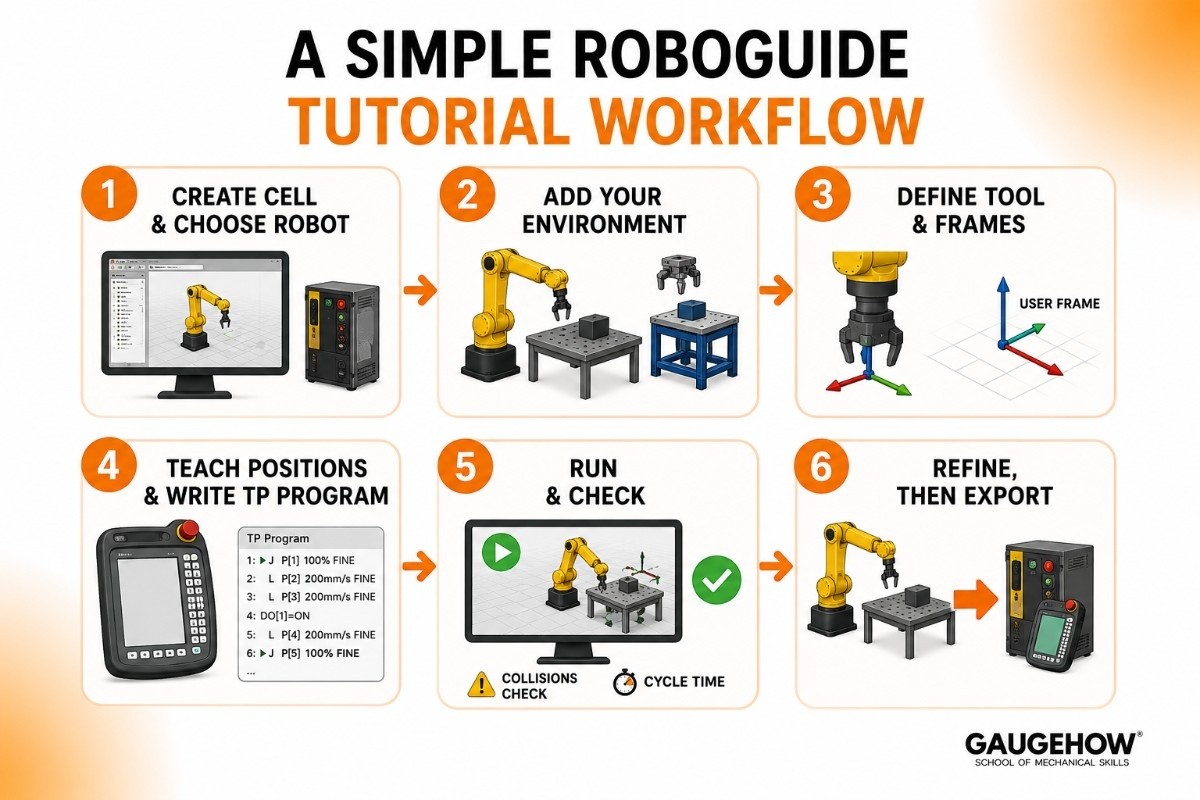
If you are following a RoboGuide tutorial, almost every project follows the same basic steps. Knowing this flow ahead of time makes any lesson easier to follow:
Create a new cell and choose your robot model and controller version (for example, an LR Mate on an R-30iB Plus controller). Picking the correct model matters because it sets the robot's reach and motion limits.
Add your environment. Import or place fixtures, a table, the part, and the gripper so the virtual cell matches your real one.
Define the tool and frames. Set up the tool centre point and any user frames so positions are measured correctly.
Teach positions and write the TP program. Use the virtual teach pendant to jog the robot, record points, and add motion and logic instructions.
Run and check. Play the simulation, watch for collisions or unreachable points, and read the cycle time.
Refine, then export. Adjust the layout or program, and when it works, transfer it to the real robot.
RoboGuide also ships with built-in tutorials and sample cells for each PRO module, which is the best place to start before building your own project from scratch.
Pricing
This is the section most people skip to, so here is the honest version: FANUC does not publish a public price list for RoboGuide, and what you pay varies a lot by region, distributor, and whether your company is an authorised FANUC integrator.
That said, the general picture from buyers over the years looks like this:
Model: Usually sold as a per-seat annual licence (a yearly lease), with each PRO module priced separately. One licence activates one PC, and licences can be transferred between machines.
Typical cost: Reports commonly put a single seat of the full 3D simulation software in the rough range of about $5,000–$6,000 per year, though quotes from $2,000 up to around $8,000 appear depending on the module and customer status.
The cut-down, program-only OlpcPRO has been quoted closer to $2,000.
Free trial: FANUC offers a fully functional 30-day free trial through its Customer Resource Center, though it generally expects proof of robot ownership to set up an account.
Sometimes free: Some buyers report receiving RoboGuide licences at no charge (occasionally with the vision plug-in) when they purchase robots, depending on the regional office and the deal.
Because pricing is so variable, the only reliable way to get a real number is to request a quote from your local FANUC office or distributor. Treat the figures above as ballpark guidance, not a fixed rate card.
Pros and cons
A fair view means looking at both sides. Here is where RoboGuide shines and where it frustrates people.
Pros
Controller-accurate simulation, so programs and cycle times closely match the real robot.
The virtual teach pendant teaches skills that transfer directly to real FANUC hardware.
Deep, FANUC-specific support for the exact robot models, controllers, and options you will use.
Strong process plug-ins for welding, painting, palletising, and picking.
A genuine 30-day free trial and lots of built-in tutorials for learning.
Cons
It only works with FANUC robots — useless if your plant runs mixed brands.
Pricing is high and opaque, and each PRO module costs extra.
The annual-lease model means ongoing cost rather than a one-time purchase.
Some users find the interface dated and the learning curve steep, especially on older versions.
Real-world program transfer can depend on extra paid controller options like ASCII Upload.
Best for
RoboGuide is the right tool when your situation matches its strengths.
It is the natural choice for any plant, integrator, or training program that is standardised on FANUC robots — which is common in automotive, metal fabrication, electronics, food and beverage, and general material handling.
It fits both small shops running a single cell and large facilities planning multi-robot lines, because the same accurate controller sits behind every model.
It is especially valuable for brownfield projects, where you want to write and test a new program offline while the existing line keeps producing, then drop the finished program in with minimal downtime.
For students, it is the best option if your goal is to work specifically with FANUC equipment, since the skills map one-to-one onto real machines. It is a poor fit only if you run multiple robot brands or need a low-cost, vendor-neutral tool.
Integrations
RoboGuide is built to connect with the things a robotics engineer actually works with.
On the design side, it imports CAD models from common engineering formats, so you can bring in your own grippers, machines, and parts rather than rebuilding them.
It models peripheral equipment such as conveyors (with line tracking) and machine tools, and it supports robot vision setups through its vision-related tools and plug-ins.
It also includes utility features like external device connection, which lets the simulation talk to outside signals and equipment, plus tools for I/O logic so you can test how the robot coordinates with sensors and other machinery.
Because it is FANUC's own software, it integrates tightly with FANUC's controller options and process software rather than with third-party ERP or MES systems — that higher-level plant integration is typically handled by separate software, not RoboGuide itself.
Deployment
RoboGuide is a traditional desktop application, not a cloud service. You install it on a Windows PC, and it runs locally (on-premises) on that machine.
Licences are tied to a PC but can be moved between computers when needed, and server licence options exist for sharing across a team.
This local, on-prem model has real advantages: your project files and designs stay on your own hardware, and you do not depend on an internet connection to work.
It also means there is no browser-based or cloud version — so collaboration happens by sharing files, and you manage updates and installs yourself. For brownfield work this is a strength, because the software lives entirely on the engineering PC and never touches the live production network.
RoboGuide vs RoboDK
The most common comparison students ask about is RoboGuide vs RoboDK, so it deserves its own section.
The core difference is brand scope. RoboGuide is FANUC-only and uses FANUC's real virtual controller, which makes it extremely accurate for FANUC hardware but useless for anything else.
RoboDK is brand-neutral: it works out of the box with hundreds of robot models from many manufacturers, so the same tool covers FANUC, ABB, KUKA, Universal Robots, and more.
Cost and licensing also differ. RoboDK is generally sold as a more affordable one-time purchase with optional yearly maintenance, and its application wizards are included, whereas RoboGuide is a pricier annual lease with separately priced modules.
The trade-off is depth versus breadth: RoboGuide gives you the deepest, most controller-accurate FANUC experience and the closest match to the real teach pendant, while RoboDK gives you flexibility across brands, an easier learning curve, and lower cost.
If you only ever touch FANUC robots, RoboGuide is hard to beat. If you work with mixed brands or want a cheaper, simpler tool, RoboDK is the stronger pick.
Alternatives
If RoboGuide is not the right fit, these are the main tools worth comparing. Each is a serious offline programming or simulation package in its own right.
RoboDK — Brand-neutral, affordable, and beginner-friendly, supporting hundreds of robots from many makers. The most common direct alternative for FANUC users who want flexibility.
ABB RobotStudio — ABB's offline programming and simulation suite, often praised for usability and frequently cited as cheaper than RoboGuide. Best if you run ABB robots.
KUKA.Sim — KUKA's simulation tool for offline programming and digital twins of KUKA cells, covering layout, material flow, and bottleneck analysis.
Yaskawa MotoSim — The equivalent vendor tool for Yaskawa Motoman robots, used for reach studies, cycle time, and offline programming.
Robotmaster — A CAD/CAM-based offline programming tool that is brand-flexible and especially strong for path-heavy jobs like cutting, trimming, deburring, and milling.
FAQ
Is RoboGuide free? Not for full use. FANUC offers a fully functional 30-day free trial, and some buyers receive a licence when they purchase robots, but the production software is a paid annual licence.
Is RoboGuide cloud-based? No. It is a Windows desktop application that runs locally on your PC. There is no browser or cloud version.
Does RoboGuide work with non-FANUC robots? No. It only supports FANUC robots and controllers. For other brands you would use that maker's tool or a brand-neutral option like RoboDK.
RoboGuide vs RoboDK — which should I learn? Learn RoboGuide if your goal is to work specifically with FANUC equipment, because the skills transfer directly. Learn RoboDK if you want a cheaper, easier tool that works across many robot brands.
What is the difference between RoboGuide and HandlingPRO? RoboGuide is the overall product, and HandlingPRO is its general-purpose material-handling module. When people say "RoboGuide," they usually mean HandlingPRO.
WeldPRO, PaintPRO, and PalletPRO are other modules for specific jobs.
Do I need a real robot to learn RoboGuide? No. The whole point is that you can program and simulate entirely on your computer. The free trial is enough to learn the basics, though FANUC may ask for proof of robot ownership to set up a trial account.
Discover FANUC ROBOGUIDE, robot simulation and offline programming software that helps engineers design, and optimize robotic systems before deployment.