Altair Inspire
Altair Inspire

Altair Inspire: The Beginner's Guide to Simulation-Driven Design (2026)
If you are studying engineering, product design, or architecture — or just getting started with simulation software — Altair Inspire is one of the most beginner-friendly tools you can learn.
It helps you design smarter parts, run structural tests, and see how your design performs before you ever build it.
This guide covers everything you need to get started: what the software does, how to download it, how to learn it, and how it compares to other tools you might have heard of.
What Is Altair Inspire?
Altair Inspire is a simulation-driven design software made by Altair Engineering. It lets engineers and designers create, test, and optimize parts — all in one place.
In simple terms: you build a shape, tell the software what forces or loads it needs to handle, and Inspire shows you the most efficient version of that design.
It removes unnecessary material while keeping the part strong. This process is called topology optimization.
It is used across industries like aerospace, automotive, and medical devices — anywhere engineers need parts that are both strong and lightweight.
What Does Altair Inspire Actually Do?
Topology Optimization
This is the feature Inspire is most known for. You define a design space (the maximum size your part can be), apply forces and constraints, and the software automatically removes material that is not doing any work.
The result is a shape that is as strong as it needs to be — and nothing more.
This workflow is similar to Fusion Generative Design, where engineers define design goals and constraints, and the software automatically generates optimized design alternatives based on those requirements.
This is especially useful when designing parts for 3D printing, where reducing material directly reduces cost and print time.
Structural Analysis
Before you finalize a design, Inspire lets you run a stress test on it. You apply loads — like pressure, weight, or force — and the software shows you where the part might bend, crack, or fail. You can see this visually with color-coded maps.
Students love this because it makes abstract engineering concepts very visual and easy to understand.
Motion Simulation
Inspire can simulate how parts move when connected together — like a robot arm, a door hinge, or a suspension system.
This is called multi-body dynamics. You can check if your mechanism works correctly before building a physical prototype.
Additive Manufacturing Support
Inspire includes tools specifically for 3D printing. It can help with build orientation, support structure generation, and checking if your design is actually printable.
For more advanced additive manufacturing workflows, engineers often use ntop alongside Inspire. ntop specializes in lattice design, complex geometry generation, and design optimization for high-performance 3D-printed parts.
This makes it a practical tool for students who have access to a 3D printer.
Fluid Flow (CFD) Simulation
In the 2025 version, Inspire added better support for simulating how fluids — air, water, coolant — flow through or around a part. This is useful for designing things like heat sinks, vents, and filters.
Altair HyperWorks and How Inspire Fits In
Altair Inspire is part of a larger software family called Altair HyperWorks. Think of HyperWorks as an umbrella — it includes many engineering tools, and Inspire is one of them.
What Is HyperWorks?
Altair HyperWorks is Altair's full simulation platform. It includes tools for:
Mesh generation and pre-processing (HyperMesh)
Structural and multi-physics solving (OptiStruct, Radioss)
Post-processing and results visualization (HyperView)
Concept design and optimization (Inspire)
Where Does Inspire Fit?
Inspire is the beginner-friendly, design-focused tool in the HyperWorks family. It is built for designers and engineers who want to run simulations without needing to be a simulation specialist.
More advanced users eventually move to tools like HyperMesh and OptiStruct for deeper control. But Inspire is the best starting point — and for many design tasks, it is all you need.
Do You Need HyperWorks to Use Inspire?
No. Inspire can be installed and used as a standalone product. You do not need the full HyperWorks suite. That said, if your university or company already has a HyperWorks license, Inspire is likely included.
Altair Inspire Tutorial: How to Get Started
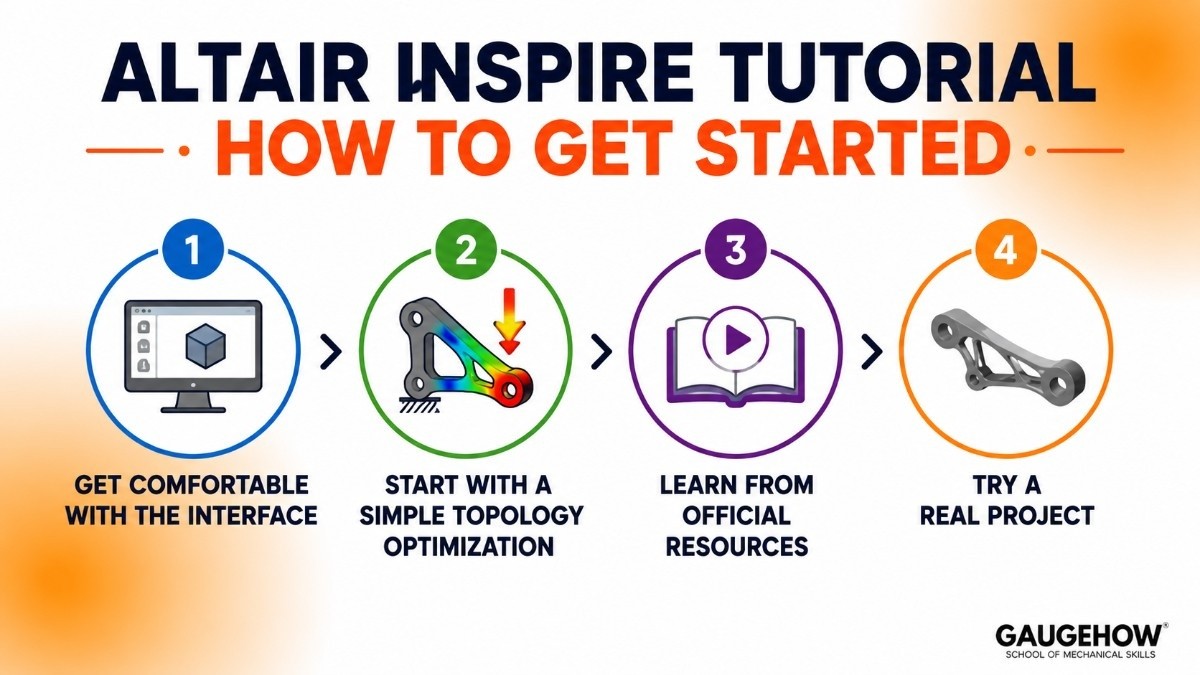
Learning Inspire is much easier than learning traditional simulation software like Abaqus or Nastran. Here is a clear path for beginners.
Step 1: Get Comfortable With the Interface
When you open Inspire, you will see a ribbon-based interface (similar to Microsoft Office). The tools are grouped by workflow — Structure, Motion, Print3D, and so on. Spend your first session just clicking around and exploring without worrying about doing anything correctly.
Step 2: Start With a Simple Topology Optimization
The best first project is a simple bracket or beam. Here is the basic workflow:
Import or create a 3D shape (your design space)
Add supports (where the part is fixed)
Add forces or loads (what forces act on the part)
Run the topology optimization
Review the result and use the PolyNURBS tool to create a clean final shape
This entire process can be done in under 30 minutes on your first try.
Step 3: Learn From Official Resources
Altair provides free learning materials through two main channels:
Altair One Learning Center — This is Altair's official learning platform. It has structured courses, videos, and hands-on exercises for Inspire. You can access it at one.altair.com. Many courses are free for students.
Altair Community Forum — A place to ask questions, share models, and learn from other users. Very active and beginner-friendly.
YouTube — Search "Altair Inspire tutorial" and you will find dozens of short, project-based videos from both Altair and independent instructors. These are great for visual learners.
Step 4: Try a Real Project
Once you have done a basic tutorial, pick something from your coursework or a project you are curious about. Design a lightweight bike frame bracket. Optimize a drone arm. Run a stress test on a shelf bracket. Applying the tool to something you care about is the fastest way to learn.
Altair Inspire Download: How to Get the Software
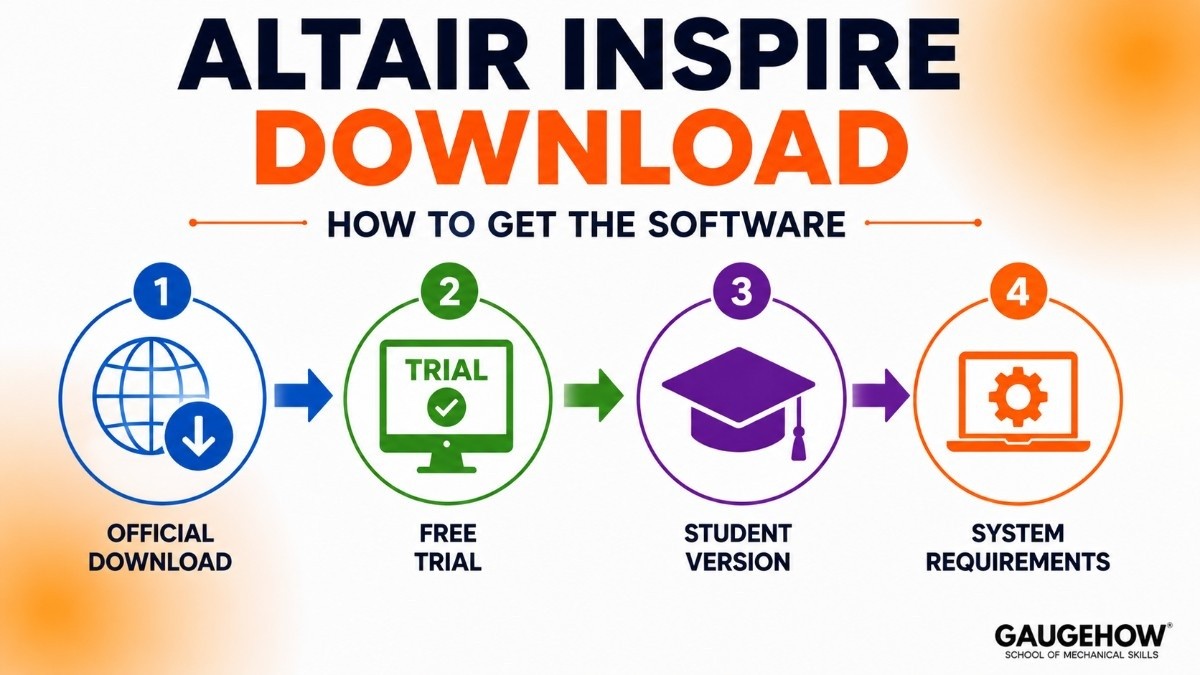
Official Download
The only safe and official place to download Inspire is through Altair's website at altair.com. Do not download from third-party sites — unofficial versions may be outdated, incomplete, or contain malware.
Free Trial
Altair offers a free trial of Inspire. You will need to create an account on the Altair One platform and request access. The process is straightforward and usually approved within a day.
Student Version
If you are a student, you have two good options:
Option 1 — Altair Student Edition Altair offers a free student license through their website. Go to altair.com/student-edition and sign up with your university email. You get access to a wide range of tools including Inspire at no cost.
Option 2 — University Site License Many universities that teach mechanical, aerospace, or industrial engineering have a campus-wide HyperWorks license. Check with your IT department or your professor — you may already have free access through your institution.
System Requirements
Inspire is a demanding application. For a smooth experience, your computer should have:
Windows 10 or 11 (64-bit)
At least 16 GB RAM (32 GB recommended for larger models)
A dedicated GPU with at least 4 GB VRAM
20 GB of free disk space
It does not run on Mac or Linux natively. If you only have a Mac, check if your university has remote access to a Windows workstation.
Altair Inspire vs Ansys: Which One Should You Learn?
This is one of the most common questions students ask. Here is an honest, straightforward comparison.
What They Have in Common
Both Inspire and Ansys are simulation tools used in engineering. Both can run structural analysis, check stress and strain, and help engineers validate designs before manufacturing.
Where They Differ
Altair Inspire is designed for designers and engineers early in the design process. It focuses on concept-level optimization — finding the best shape for a part before you finalize the design. The interface is clean, visual, and much easier to learn.
Ansys is a full simulation suite used for deep, detailed engineering analysis. It covers structural mechanics, fluid dynamics, electromagnetics, thermal analysis, and more.
It is more powerful but also much more complex. Most Ansys workflows require a solid understanding of finite element analysis (FEA) concepts before you can use it effectively.
A Simple Way to Think About It
Use Inspire to answer: "What shape should this part be?"
Use Ansys to answer: "Will this exact design survive these exact conditions?"
They are often used together in industry. Inspire handles early-stage concept design; Ansys handles detailed validation.
Which Should You Learn First?
If you are a student, start with Inspire. It teaches you the fundamentals of simulation-driven design in a visual, forgiving environment. Once you understand how structural loads, supports, and optimization work conceptually, transitioning to Ansys becomes much easier.
Ansys is the industry standard for advanced simulation. But Inspire is the better learning tool — and it is genuinely useful in professional settings too.
Who Is Altair Inspire Best For?
Students
Inspire is one of the most student-accessible simulation tools available. The free student license, the clean interface, and the official learning resources make it a great choice for:
Mechanical engineering students learning topology optimization
Product design students who want to test structures before prototyping
Architecture students exploring structural efficiency
Anyone doing a final year project involving 3D-printed or optimized parts
Professional Engineers
Design engineers in aerospace, automotive, and medical devices use Inspire for:
Early-stage concept design and weight reduction
Quick structural checks without needing a simulation specialist
Preparing designs for additive manufacturing
Running motion analysis on mechanisms
Pros and Cons
What Works Well
Easy to learn compared to most simulation software
Free student license with a university email
Visual, intuitive interface — results are color-coded and easy to read
Topology optimization results are genuinely useful and fast
Part of the HyperWorks ecosystem, so it connects to more advanced tools later
What to Be Aware Of
Requires a powerful computer — low-RAM machines will struggle
Not a full FEA tool — for detailed, certified analysis, you will need something more advanced
No Mac or Linux support
Some users report inconsistencies when comparing Inspire results to OptiStruct for the same model
The free trial requires going through Altair's sales process
Frequently Asked Questions
Is Altair Inspire free for students?
Yes. Altair offers a free student edition that includes Inspire. You can sign up at altair.com/student-edition using your university email. Many universities also have campus licenses — check with your department first.
Do I need to know coding to use Inspire?
No. Inspire uses a graphical interface with no coding required. You work visually — clicking, dragging, and adjusting settings through menus. Some advanced automation features use scripting, but you will not need those as a beginner.
How is Altair Inspire different from SolidWorks or CATIA?
SolidWorks and CATIA are general-purpose CAD tools used to model parts and assemblies in detail. Inspire is a simulation and optimization tool — it helps you test and improve designs, not create them from scratch. Most engineers use both: a CAD tool to model the part and Inspire to optimize or test it.
Can I use Altair Inspire for 3D printing projects?
Yes, and this is one of its strongest use cases. Inspire has dedicated tools for additive manufacturing — topology optimization generates shapes that are ideal for 3D printing, and the Print3D module helps prepare models for the printer.
Is there a cloud version of Altair Inspire?
Not in the traditional sense. Inspire runs as a desktop application on Windows. However, Altair One — Altair's cloud platform — allows you to run certain simulations on cloud hardware, which is useful if your local machine is not powerful enough.
Final Thoughts
Altair Inspire is one of the best tools for students who want to learn simulation-driven design without spending months figuring out a complex interface.
The free student license, strong official learning materials, and practical topology optimization tools make it genuinely worth learning — whether you are in your first year or working on a final year project.
If you are ready to start, the best next step is simple: go to altair.com/student-edition, sign up, and run your first topology optimization. It takes less than an hour to see a real result — and that is usually enough to get hooked.
Altair Inspire helps engineers design better products faster. Explore its key features and how it supports simulation, optimization, and product design.