Visual Components
visual components software

Visual Components Software: A Student's Guide to 3D Manufacturing Simulation
Picture this: you have been asked to design a factory line — conveyors, robots, machines, the whole setup — and prove it actually works before anyone spends a single dollar building it.
You cannot exactly borrow a real factory to test your idea. This is the problem Visual Components software was built to solve.
For students in manufacturing, mechatronics, or industrial engineering, this kind of tool is where the textbook meets the real world. You get to build a working factory on your screen, run it, find the bottlenecks, and fix them — all before any metal gets cut.
This guide walks through what Visual Components software is, what it does, what it costs, and how it compares to alternatives like RoboDK. Straight talk, no sales pitch.
What is Visual Components software?
Visual Components is a 3D manufacturing simulation platform used to design, simulate, and validate factory layouts and robot programs in a virtual environment.
It is made by Visual Components, a Finnish company that has been building simulation software for around 25 years and is now majority-owned by KUKA, one of the world's largest robot manufacturers.
The software lets engineers drop ready-made factory components — conveyors, machines, robots, workers — into a 3D scene, connect them into a production line, and press play to see how the whole system behaves. Think of it as a sandbox for factories.
The current version, Visual Components 5.0, brings layout design, process simulation, and robot offline programming together in one platform.
For students, the short version is this: it teaches you to plan and test entire production systems, not just a single robot.
Visual Components 3D simulation: key features
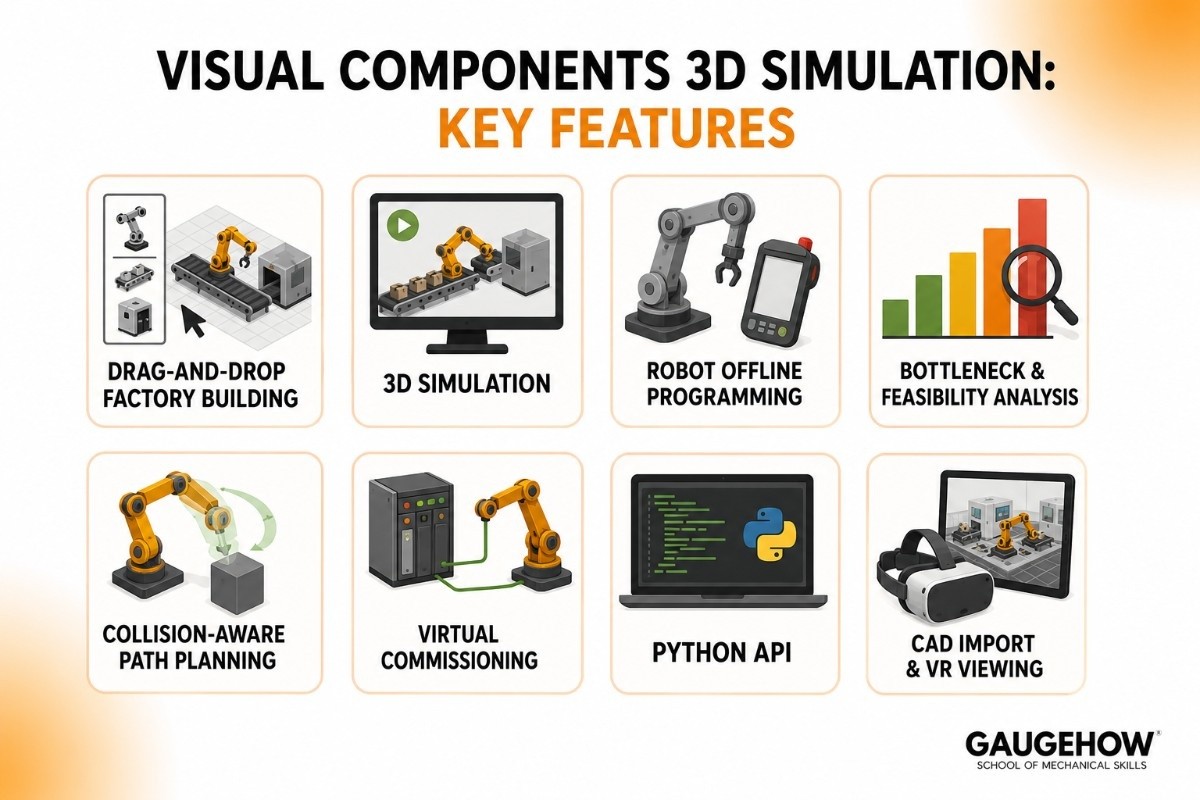
So what can you actually do with it? Here are the capabilities that matter, minus the brochure talk:
Drag-and-drop factory building: Use a library of more than 3,000 ready-made components, including over 1,600 robots from 70-plus brands, to build a line quickly.
3D simulation: Run your factory in motion and watch parts, machines, and robots interact in real time.
Robot offline programming (OLP): Program robots from many different manufacturers in one environment — not just one brand.
Bottleneck and feasibility analysis: Spot where your line slows down or breaks, and get data to fix it before building.
Collision-aware path planning: The software helps robots avoid crashing into things while finding efficient paths.
Virtual commissioning: Connect your simulation to real PLCs and robot controllers to test control logic safely.
Python API: Automate tasks and build your own custom components with scripting — a genuinely useful skill to put on a resume.
CAD import and VR viewing: Bring in your own 3D models, and present finished simulations in virtual reality or on a tablet.
Visual Components tutorial: getting started
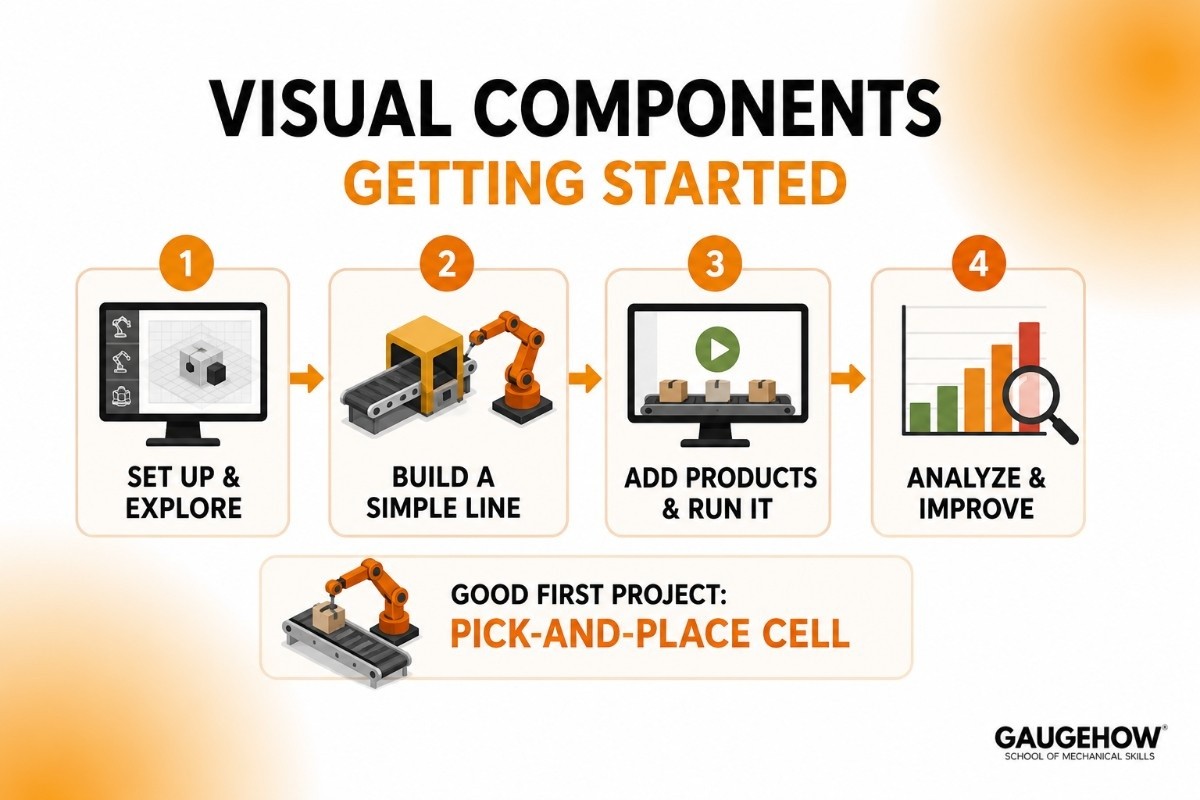
You do not need years of experience to make something move. Here is the path most beginners take.
Step 1: Set up and explore
Install the software on a Windows PC, open a blank layout, and get familiar with the component library on the side panel. This library is the heart of the tool.
Step 2: Build a simple line
Drag a conveyor, a machine, and a robot into the scene. Snap them together so parts can flow from one to the next. The software handles a lot of the connection logic for you.
Step 3: Add products and run it
Tell the line what product to make, then press play. Watch the parts move through the system. This first "it actually works" moment is the fun part.
Step 4: Analyze and improve
Check the throughput and look for bottlenecks — spots where parts pile up or robots sit idle. Adjust the layout or timing, then run it again. This build-run-improve loop is the real skill you are learning.
A good first project for students: a simple pick-and-place cell with one robot and a conveyor. It teaches layout, flow, and timing all at once.
Visual Components pricing
This is the section most people are really after, so here is the honest version.
Visual Components uses a tiered, subscription-style licensing model sold in three main editions:
Essentials — entry level, with pre-made models and templates to design and simulate basic layouts.
Professional — adds more advanced simulation, custom component creation, and statistics.
Premium — the full package, including advanced robot offline programming (OLP).
The company does not publish a flat public price list, because cost depends on the edition, region, and reseller. You request a quote for the configuration you need.
There is a free trial you can request to test the software before committing, which is the right starting point for any student. Some universities and technical schools also have education licenses through their institution, so it is worth asking your department whether you already have access.
Pros and cons of Visual Components software
Vendor pages skip the downsides. Here is the balanced view.
Pros
Brand-agnostic: Programs robots from 70-plus brands, so you are not locked into one manufacturer.
Full-line simulation: Models entire factories and production lines, not just single robots.
Large component library: Thousands of ready-made parts speed up building.
Python API: Powerful customization and automation for those who want to go deeper.
Strong for education: Widely used in universities and training centers, with plenty of learning material.
Cons
No public pricing: You have to request a quote, which makes budgeting harder upfront.
Learning curve: The depth that makes it powerful also makes it more to learn than a single-purpose tool.
Windows desktop only: No native cloud or Mac version.
Animation takes effort: Some users note that detailed 3D animation can take more time than the insight it adds, when a simpler simulation would do.
Heavier on hardware: Large, detailed factory models need a capable PC to run smoothly.
Who is Visual Components best for?
Visual Components fits system integrators, machine builders, and manufacturers who need to plan whole production systems — especially in automotive, electronics, packaging, palletizing, intralogistics, and warehousing.
It scales from a single robot cell up to a full multi-line factory, so it suits both small projects and large plants.
For students, it is an excellent pick if you want to learn factory-level thinking — layout, flow, and automation together — rather than just one robot brand. The multi-brand support also means the skills transfer no matter which manufacturer your future employer uses.
Integrations: what Visual Components connects to
A simulation is more useful when it talks to real systems. Visual Components connects to:
PLCs and robot controllers for virtual commissioning, including major brands like Siemens, Beckhoff, and Rockwell.
OPC UA, a common industrial communication standard, for exchanging real-time data.
CAD software, by importing 3D models of parts and equipment.
Digital twin setups, feeding real production data into the simulation.
Custom systems, through its Python API.
One honest note: Visual Components is built mainly around simulation, robot programming, and PLC-level connectivity.
It is not primarily an ERP or MES tool, so think of it as connecting to the control and equipment layer rather than to business software.
Deployment: how Visual Components runs
Visual Components is on-premise desktop software that runs on a Windows PC. There is no native cloud-hosted or Mac version, so your machine does the heavy lifting, and detailed models benefit from a strong processor and graphics card.
On brownfield readiness — working with factories that already exist — it does well. You can import existing layouts from CAD, model your current line, and connect to physical PLCs and controllers for virtual commissioning.
That makes it useful both for designing brand-new lines and for testing changes to ones already running.
Visual Components vs RoboDK
This is the comparison students ask about most. RoboDK is a focused, affordable robot offline programming tool that supports 500-plus robots and is quick to learn.
The honest difference: RoboDK is leaner and cheaper for pure robot programming, while Visual Components does much more. If your only goal is to program a robot path quickly and on a budget, RoboDK is hard to beat. If you need to simulate a whole production line — conveyors, machines, material flow, and robots together — Visual Components is the broader, more capable platform. Many people actually use RoboDK for quick robot jobs and Visual Components for full-system planning.
Feature | Visual Components | RoboDK |
|---|---|---|
Best For | Factory simulation | Offline robot programming |
Focus | Entire production lines | Industrial robots |
Digital Twins | Excellent | Basic |
Robot Brands | Good support | Extensive support |
Learning Curve | Moderate | Easy |
Ideal Users | Manufacturing engineers | Robot programmers |
Bottom line: Choose Visual Components for factory layout, digital twins, and production simulation. Choose RoboDK for offline robot programming, path planning, and multi-brand robot support.
Alternatives to Visual Components
KUKA.Sim — KUKA's own simulator, deeply tied to KUKA robots (and, like Visual Components, part of the KUKA family).
Siemens Tecnomatix Plant Simulation — a heavyweight for large-scale factory and logistics simulation.
FlexSim — strong, approachable discrete-event simulation, popular in education.
Delmia — Dassault's enterprise-grade digital manufacturing suite.
Is Visual Components the best manufacturing simulation software?
The honest answer: there is no single "best" — it depends on what you need.
Visual Components is one of the strongest all-around choices when you want both factory simulation and robot programming in one tool, with broad robot support and a friendly enough interface for newcomers. For pure, low-cost robot programming, RoboDK may suit you better.
For very large enterprise logistics modeling, Siemens or Delmia might fit. For students, Visual Components hits a sweet spot: broad enough to teach real factory thinking, common enough in industry that the skill counts on a resume.
Frequently asked questions
Is Visual Components free?
No, but there is a free trial you can request to test it. Full use requires a paid license, and some schools provide education licenses.
Is Visual Components cloud-based?
No. It is Windows desktop software that runs on your own computer. There is no native cloud or Mac version.
Is Visual Components owned by KUKA?
Yes. KUKA holds a majority stake in Visual Components, though the software still supports robots from many different manufacturers.
Visual Components vs RoboDK — which should a student learn?
RoboDK if you mainly want quick, affordable robot programming. Visual Components if you want to learn full production-line and factory simulation alongside robot programming.
What robots does Visual Components support?
More than 1,600 robot models from over 70 brands, including major manufacturers like ABB, Fanuc, KUKA, and Universal Robots.
Is Visual Components good for beginners?
Yes, with some patience. The basics are approachable, and it is widely used in education, but the more advanced features take time to master.
Final thoughts
Visual Components software is one of the most complete ways to learn how real factories are planned, tested, and improved — all on your laptop, with no risk and no wasted materials.
Its biggest strength is range: it handles full production lines and many robot brands in one place. Its main trade-offs are a learning curve and quote-based pricing. If you want to think like a manufacturing engineer rather than just a robot programmer, start with the free trial and build something simple. The skills you pick up here map directly onto the real production floor.
Visual Components is 3D manufacturing simulation software that helps engineers design, test, and optimize production lines before deployment.