Fusion CAM
Fusion 360 CAM Software

Fusion 360 CAM Software: The Complete Guide (2026)
Ask a room of machinists what they use to program their CNC, and you’ll get a dozen answers. But ask a small shop, a school workshop, or a one-person prototype studio, and “Fusion 360” comes up again and again.
The reason is simple: the same file you model your part in can drive the machine that cuts it — no exporting, no second program, no hand-off where things break.
That’s the part most people miss when they hear “CAD software.” Fusion has a full manufacturing side, and it’s good enough that hobbyists, students, and production shops all lean on it.
This guide covers what the CAM software actually does, what it costs, where it’s strong, where it isn’t, and how it stacks up against the tool everyone compares it to.
Overview
Fusion 360 CAM software is the manufacturing side of Autodesk Fusion — the part that turns a 3D model into CNC toolpaths and machine-ready G-code, inside the same app you design in.
It’s built by Autodesk, and the engine behind it has real history. The CAM technology came from HSMWorks, a high-performance machining plug-in Autodesk bought in 2012.
They rebuilt it into Fusion and kept developing it, which is why the toolpaths feel mature rather than bolted-on. Today, everything lives under one roof — CAD, CAM, simulation, and electronics — with the machining tools sitting in what Fusion calls the Manufacturing workspace.
The whole pitch rests on one idea: design and manufacturing share a single, live model. Change a hole or a pocket on the design side, and the toolpaths update on their own.
No re-import, no broken links between the engineer’s file and the shop’s file. For teams that design and cut the same parts, that loop is the entire reason to use it.
Does Fusion 360 Actually Include CAM?
Yes — and it’s not a stripped-down afterthought. The Manufacture workspace is where you’ll spend most of your machining time, and it handles milling, turning, drilling, and cutting out of the box.
Here’s the short version of how it works. You start a Setup, which defines three things: your work coordinate system (WCS — basically where “zero” is on the part), the stock you’re cutting from, and the machine.
From there, you add operations — roughing, finishing, drilling — and Fusion calculates the toolpaths. You simulate them to catch problems, then post-process to get the G-code your machine reads.
One thing worth saying plainly, because it trips people up: even the free version includes CAM. You can model a part and machine it without paying a cent, as long as it’s non-commercial.
There are catches (more on those under Pricing), but the core answer is that CAM isn’t a paid add-on here — it’s part of the package.
Key Features
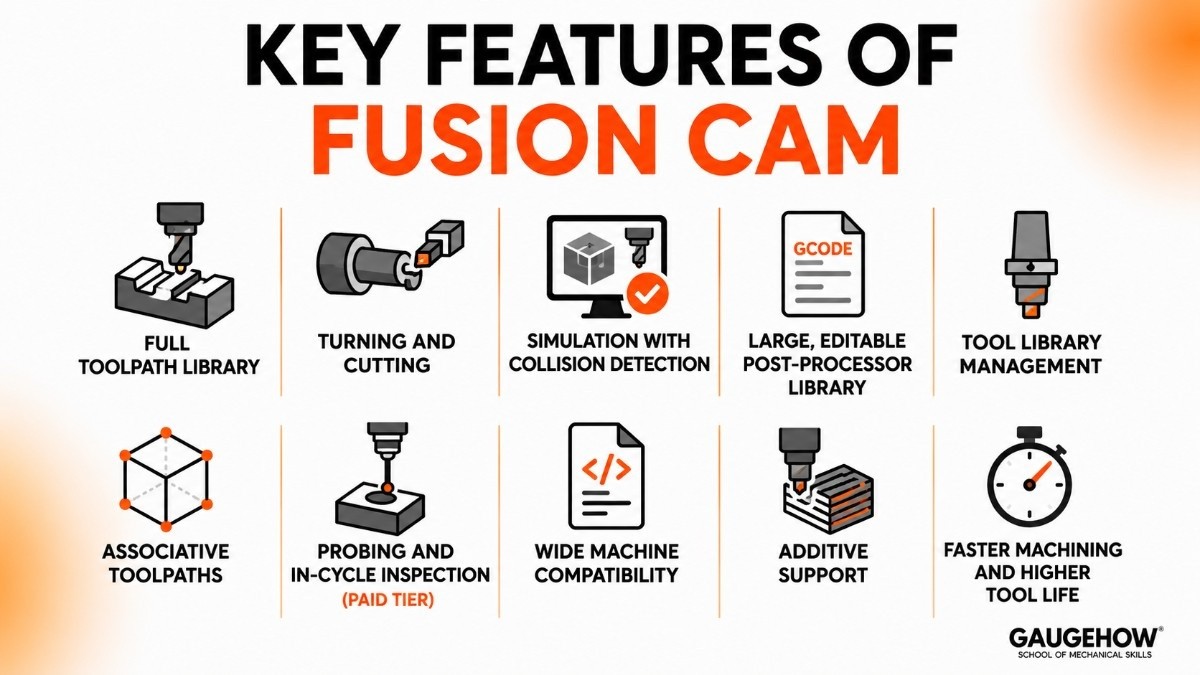
These are the capabilities that matter on the floor, not the ones on the sales slide.
A full toolpath library. Facing, 2D and 3D adaptive clearing, contour, pocket, bore, drilling, plus finishing passes like scallop and parallel. Adaptive clearing keeps a constant cutting load on the tool, which means faster roughing and tools that last longer.
Turning and cutting, not just milling. Lathe work (facing, roughing, grooving, threading) and profile cutting for waterjet, laser, and plasma all live in the same workspace.
Simulation with collision detection. Run the job virtually before you cut metal — verify material removal, catch tool, holder, and fixture collisions, and get a time estimate. This is where you avoid the costly mistakes.
A large, editable post-processor library. Output to Fanuc, Haas, Siemens, Mazak, GRBL, Mach3, LinuxCNC, and many more. Posts are editable text files, and the community shares custom ones freely.
Tool library management. Define tools once with their speeds and feeds, and reuse them across every job.
Associative toolpaths. Edit the model and the toolpaths follow. No manual rework when the design changes.
Probing and in-cycle inspection (paid tier). On-machine measurement and part alignment for tighter setups.
Additive support. The same workspace preps parts for 3D printing — orientation, supports, and process settings for plastics and metals.
Post Processors: Turning Toolpaths Into Machine Code
This deserves its own section because it’s where a lot of beginners get stuck. A toolpath inside Fusion is generic — your specific machine doesn’t speak it. The post-processor is the translator that converts the toolpath into the exact G-code dialect your controller understands.
Fusion ships with posts for hundreds of machines, and you select one when you set up the job. Right-click your setup, hit Post Process, pick your machine’s post, and you get a clean G-code file ready to load.
If your machine is unusual, you can edit a .cps post file or grab a community version — there’s an active library for everything from desktop GRBL routers to industrial Haas mills.
A practical tip that saves real grief: Autodesk gives away its post-processors. That sounds minor until you learn that some competitors charge a premium for them.
It’s one of the quietly underrated advantages of the platform. If you want to understand the G-code side properly — what those G54/G55 work offsets and M-codes actually do — our CNC Programming course covers the machine language that post processors generate.
Getting Started If You’re New to Fusion 360 CAM
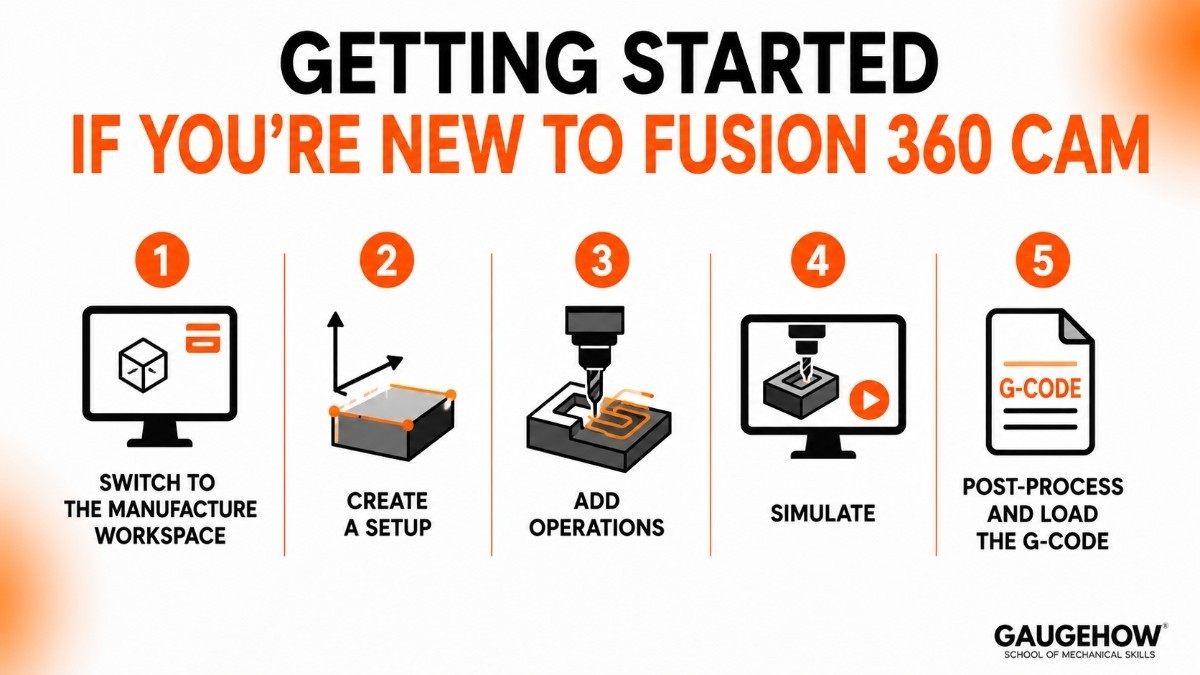
If you’ve never programmed a toolpath, the workspace can feel like a wall of buttons. It isn’t as bad as it looks. The whole process follows the same five steps every CAM system uses, so learning it here transfers to any other CAM tool later.
Switch to the Manufacture workspace. Open your model, then change the workspace dropdown from Design to Manufacture.
Create a Setup. Define your WCS (a corner of the stock — “Stock Box Point” — is the safest default), your stock size, and your machine.
Add operations. Start with roughing (2D or 3D adaptive clearing), then add finishing and drilling as needed.
Simulate. Watch the cut. If the tool turns red, you’ve got a collision — fix it before it happens for real.
Post-process. Generate the G-code and load it on your machine. Always do a dry run before cutting.
The single biggest beginner mistake is rushing the Setup. Get your stock and WCS right, and most problems disappear; get them wrong and you’ll crash the tool or scrap the part. Start with a simple part — a flat plate with a pocket and a few holes — and machine it end to end before attempting anything 3D.
Our Fusion 360 course walks through exactly this, from first setup to finished toolpath.
Pricing
This is the section most readers jump to, so here it is straight. Prices vary by region and term, so confirm on Autodesk’s site before buying — but here’s the 2026 picture for most users.
Plan | Cost (US, approx.) | Who it’s for | CAM access |
|---|---|---|---|
Free trial | $0 for 30 days | Anyone evaluating | Full features |
Personal use | $0 (non-commercial) | Hobbyists, makers | Core milling, turning, drilling — with limits (see below) |
Education | $0 for students & teachers | Learning | Effectively full |
Commercial subscription | ~$680/year (some terms list ~$480–545) | Professional use | Full standard CAM, 2.5D–3-axis |
Fusion for Manufacturing / Machining Extension | +~$1,400/year | Production shops | Adds 3+2 and simultaneous 4- & 5-axis, probing, advanced additive, nesting |
The free personal tier is genuinely useful, but it has two limits that people hit fast. It won’t do automatic tool changes — multi-tool jobs have to be posted as separate operations — and it slows rapid (G0) moves down to cutting feed rate, which makes jobs run longer.
For learning and simple parts, it’s plenty. For real production, you’ll want the subscription.
Compared to standalone CAM packages that start in the thousands, this pricing is the main reason Fusion spread through schools and small shops in the first place.
Pros and Cons
No tool is all upside down. Here’s the honest balance — and the cons are the part you should actually read.
Pros
One platform, one live file — design changes flow straight to toolpaths.
Outstanding value; free for hobbyists and students, cheap commercially.
Genuinely strong roughing via adaptive clearing.
Free, editable post processors for hundreds of machines.
Easy jump from CAD to CAM if you already know Fusion.
Cons
Cloud-tied by design. Files live in Autodesk’s cloud, and it wants an internet connection. If you need fully local, offline file ownership, this is a real dealbreaker.
Struggles with very large assemblies. It’s not built for the heaviest enterprise jobs.
Advanced multi-axis is paywalled behind the manufacturing extension.
Subscription only — no perpetual license.
CAM depth trails the specialists for the most demanding 5-axis, mold, and aerospace work.
That cloud point is the one to weigh hardest. Plenty of machinists love everything about Fusion except that they can’t keep their files purely local — and that single thing is enough to send some of them elsewhere.
Best For
Fusion 360 CAM software fits some situations far better than others.
Shop size: Solo machinists, small-to-mid job shops, and prototype teams. The sweet spot is one to a handful of seats where one integrated tool removes friction.
Industries: Product development, consumer hardware, R&D and prototyping, custom fabrication, and education. It’s a workhorse in makerspaces and engineering programs.
Use case: Teams that design and manufacture the same parts and want one tool for both.
It’s a weaker fit for large production lines with dedicated CAM programmers using Mastercam, PowerMill, ESPRIT, HyperMILL, or NX CAM, constant simultaneous 5-axis work, or any operation that can’t use cloud-connected software.
Integrations
Fusion isn’t an ERP or MES platform, so let’s be clear about what “integrates” actually means here — it’s about what feeds in and what comes out.
CAD in: Imports STEP, IGES, SAT, DXF, DWG, STL, and native SolidWorks, Inventor, and CATIA files. You don’t have to model in Fusion to machine it.
Machines out: Posts target Fanuc, Haas, Siemens, GRBL, Mach3, LinuxCNC, and hundreds more.
The Autodesk ecosystem: Connects to Fusion Manage (cloud PLM) for BOMs, change orders, and release management — the closest thing to ERP/MES territory — plus simulation and PCB tools.
On-machine sensors: In-cycle probing integrates with measurement hardware for setup and inspection (paid tier).
API: A documented API lets you script and automate CAM tasks, useful for families of similar parts.
The practical takeaway: Fusion rarely traps you. It reads the CAD you already have and writes the code your machine already runs.
For deeper factory-floor systems (true MES, sensor networks, ERP), you’d bridge through Fusion Manage or the API rather than expecting Fusion itself to be that platform.
Deployment
Fusion is a cloud-connected desktop application — not pure browser software, not traditional on-premise either. You install a client on Windows or macOS, sign in with an Autodesk account, and your projects sync through the cloud. There’s a web viewer for sharing, but the real work happens in the installed app.
Setup is fast: assign a seat, download, log in, and machine. No license server to babysit, and new users are productive in minutes.
On brownfield-readiness — driving older machines, not just new ones — Fusion does well. Because posts are editable, you can generate G-code for legacy controllers and decades-old equipment. Hobbyists run it on GRBL desktop routers and aging Haas mills alike.
The honest caveat is the same as before: limited offline use and cloud-tied storage. If your facility runs air-gapped machines, plan around that first.
Fusion 360 CAM vs Mastercam
This is the comparison everyone makes, so here’s the real answer instead of a diplomatic one.
Feature | Fusion 360 CAM | Mastercam |
|---|---|---|
Best For | Small shops, students, prototyping | Professional CNC machining |
CAD + CAM | Built into one platform | Primarily CAM-focused |
Multi-Axis Machining | Strong capabilities | More advanced and proven |
Toolpath Control | Easy to use | More detailed control |
Cost | Affordable subscription | Expensive license |
Learning Curve | Easier for beginners | Steeper learning curve |
Key Skills | CAD design, CAM programming, CNC machining | Advanced CAM, multi-axis machining, toolpath optimization |
Industry Use | Education, startups, engineering teams | Aerospace, mold making, production machining |
Choose If... | You need value and CAD/CAM integration | CAM is your primary business |
The honest verdict: if CAM is your whole job and budget isn’t the constraint, Mastercam earns its price. For everyone else — small shops, prototype work, schools, and engineers who design and machine — Fusion wins on value and integration, and it’s more than enough.
Quick Take:
Fusion 360 CAM offers the best value with CAD and CAM in one tool.
Mastercam is the stronger choice for advanced CNC programming and high-end production environments.
Other Alternatives Worth Knowing
Beyond Mastercam, four more tools are worth a look depending on your situation. (Each links to its own breakdown — coming soon on the GaugeHow blog.)
Tool | Best for | Rough cost | Trade-off vs Fusion |
|---|---|---|---|
SolidCAM / CAMWorks | Shops standardised on SolidWorks | ~$5,000 | Lives inside SolidWorks; SolidCAM’s iMachining cuts roughing time 30–70% — but tied to that ecosystem |
FreeCAD (Path) | Hobbyists, zero budget | Free, open-source | Costs nothing; limited to 2.5D and a rougher interface |
Vectric VCarve / Aspire | CNC routing, signmaking, wood | ~$350–2,000 perpetual | Excellent for routers; not a general metal-machining tool |
BobCAD-CAM | Small shops wanting to own a license | ~$995+ perpetual | One-time buy instead of subscription; smaller community |
FAQ
Does Fusion 360 have CAM built in? Yes. CAM lives in the Manufacture workspace, where you create setups, generate milling, turning, and drilling toolpaths, simulate them, and post out G-code — all in the same file you designed in.
Is Fusion 360 CAM cloud-based? It’s cloud-connected. You install a desktop client on Windows or macOS, but files sync through Autodesk’s cloud, and it expects an internet connection. There’s no fully offline, locally-stored mode like some older CAM packages offer.
Is the CAM in Fusion 360 free? There’s a free tier for personal, non-commercial use that includes core CAM, plus a 30-day full trial and free student/educator licenses. The free version blocks automatic tool changes and slows rapid moves, and advanced multi-axis needs the paid extension.
Fusion 360 CAM or Mastercam — which is better? For small shops, prototypes, and education, Fusion wins on value and integrated CAD/CAM. For high-end, high-volume multi-axis machining, Mastercam goes deeper and stays the professional standard, at many times the cost.
How hard is it to learn? Manageable if you know Fusion’s design side. The one sticking point for newcomers is the Setup — defining stock and the work coordinate system correctly. Get that right, and the rest follows quickly.
The Bottom Line
Fusion 360 CAM software packs a genuinely capable manufacturing workspace into the same tool you design in, at a price nothing else in its class matches.
It won’t unseat Mastercam in a high-end production shop, and the cloud dependency annoys some engineers fairly. But for solo machinists, prototype teams, students, and small shops, the design-to-toolpath loop is exactly what makes it worth using.
The fastest way to actually get good at it is to build one part start to finish: model it, set up the job, rough it with adaptive clearing, simulate, and post the code.
Start with our Fusion 360 course to learn it properly — then the CNC Programming course covers the G-code side, and the GD&T course makes sure your machined parts actually hit tolerance.
Fusion 360 CAM turns your 3D model into CNC toolpaths and G-code in one app. See features, pricing, free vs paid, and how it compares to Mastercam.